A Privileged Access Workstation is still one of the strongest ways to reduce risk around admin accounts. In hybrid environments, that matters even more — privileged access tends to sprawl across cloud consoles, on-prem tooling, synced identities, and too many workflows nobody fully owns. Windows 365 gives you a faster route to a controlled admin workstation, but it is not a complete privileged access strategy on its own. The real protection comes from combining a dedicated Cloud PC with identity separation, a locked-down provisioning policy, Intune hardening, security baselines, App Control for Business, Conditional Access, and disciplined privilege management.
Why This Matters
Admin credentials are still the backstage pass attackers want most. Once they get those, the rest of the show goes downhill fast — like a headliner walking offstage mid-set.
That is the core reason PAWs still matter. Privileged work should not happen from the same device where you read email, open random attachments, click meeting links, and browse documentation. Mixing those worlds has always been risky. In hybrid environments, it gets worse.
Hybrid setups are messy by nature. You often have cloud administration, on-prem systems, synced identities, legacy management tools, and operational habits built over many years. The technical complexity is one problem. The administrative sprawl is the other. Privileged access is often spread across platforms, teams, and exceptions, making it much harder to secure cleanly.
That is where Windows 365 becomes interesting.
A Cloud PC does not automatically become a PAW just because it runs in Microsoft’s cloud. But it gives you a much faster path to an isolated, consistent admin workspace. Instead of waiting for a separate physical device rollout, you can start building a dedicated privileged environment using Intune, Entra ID, Defender, security baselines, App Control for Business, and Conditional Access — tools most organizations already have.
That said, let’s keep both feet on the ground. A Windows 365 PAW is not a silver bullet. Different organizations have different requirements, threat models, and operational realities. Think of it as a strong platform for building a better admin workstation — not the full security strategy wrapped in a shiny guitar solo.
Some pre-reqs that should already be obvious, and I hope you already got this in place:
- Have separate admin accounts, cloud only.
- Phishing-Resistant MFA
- PIM activated with the specific roles r permissions that the admin is in need of.
Speed steps to Build a Windows 365 PAW in 90 minutes
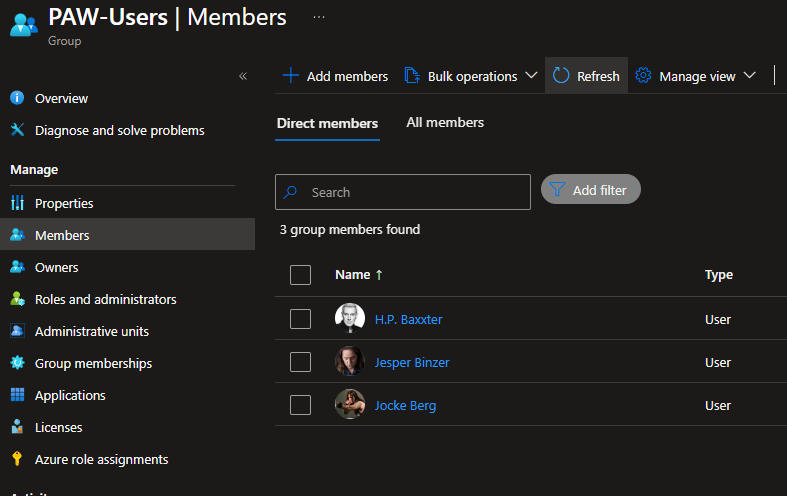
Start by creating a Entra ID group
This group will be used for assigning license and give provision a PAW for the admins. Can be dynamic or populated by other systems like ServiceNow or stuff like that. In this blog we just create a simple manual group.
Provision a Dedicated Windows 365 Cloud PC with a PAW-Specific Provisioning Policy
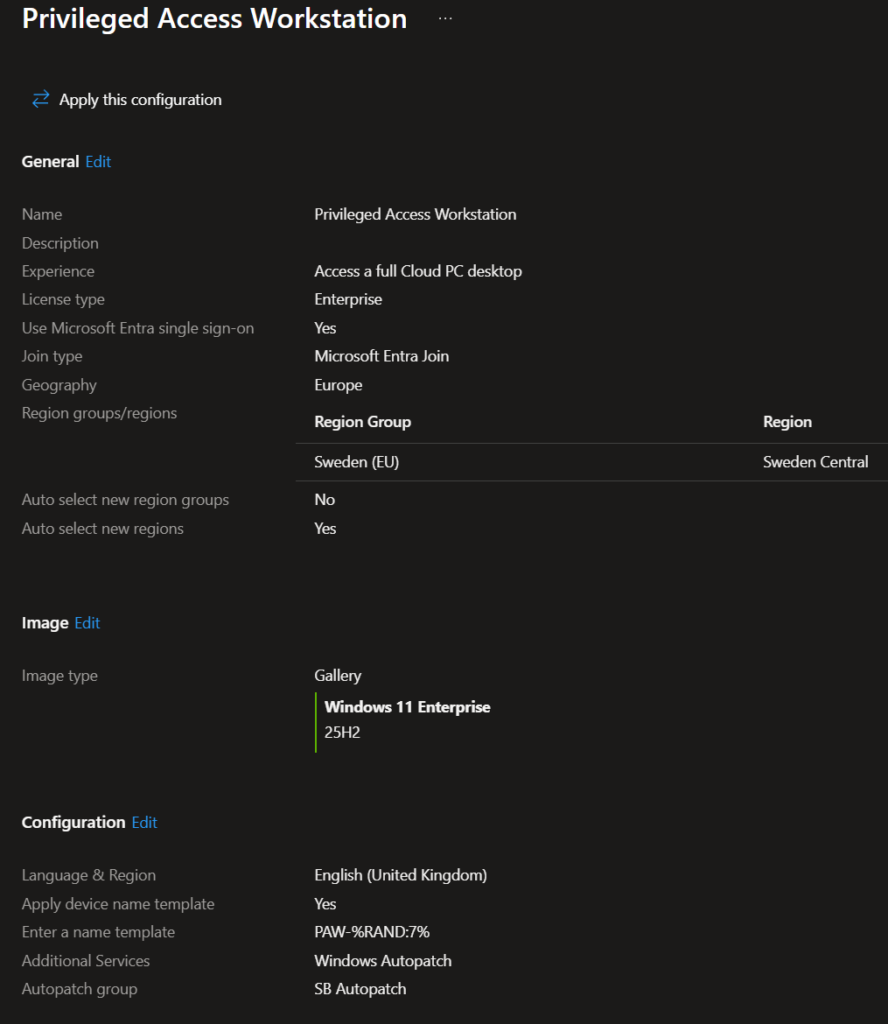
Deploy a Windows 365 Cloud PC specifically for privileged work. Do not reuse a general provisioning policy — create one that is purpose-built for PAW use.
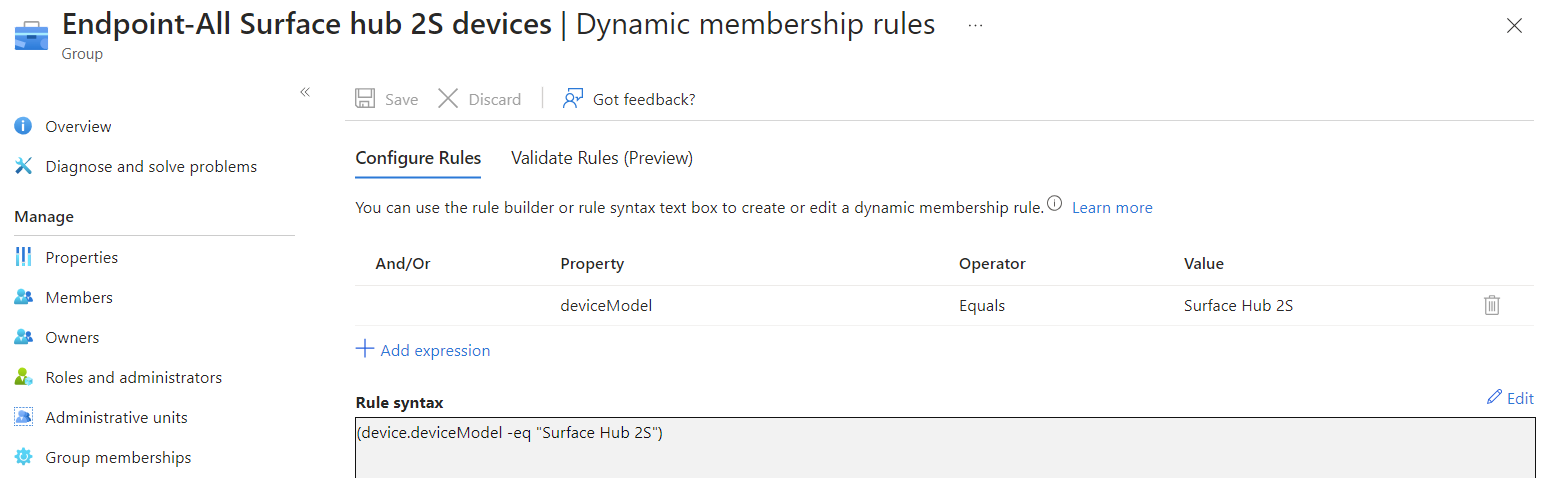
In the Windows 365 provisioning policy, make deliberate choices. Join the Cloud PC to Microsoft Entra ID (cloud-only join is cleaner for PAW isolation). Choose a region close to your admins for a responsive session. Select a Windows 11 Enterprise image — either the gallery image as a baseline or a custom image if you want to prebake specific tooling. Set the network configuration so the PAW lands in an appropriate virtual network or uses the Microsoft Hosted Network if you do not need on-prem line-of-sight. Assign the provisioning policy to a dedicated Entra ID group containing only your PAW users.
The sizing matters too. A 2 vCPU, 8 GB RAM configuration is usually enough for admin portal work and lightweight management tooling. Avoid oversizing — a PAW should not be comfortable enough to become a general-purpose desktop. But scripting and running Vs code with stuff can demand some steps up in the licensing, at least from my experience.
Why it matters: The provisioning policy defines the foundation. A sloppy provisioning setup — wrong join type, wrong network, shared with non-PAW users — undermines the isolation before you even apply a single security policy.
Put the PAW in Its Own Intune Device Group
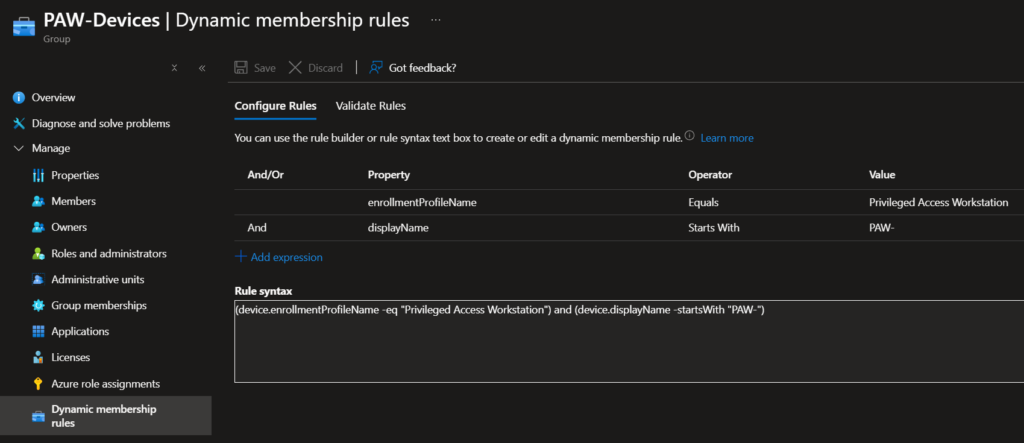
Once the Cloud PC is provisioned, make sure it lands in a dedicated Intune device group. Use a dynamic device group based on the enrollment profile or device model (Cloud PC) combined with the assigned user group, so new PAW devices are automatically captured.
This group becomes the single targeting point for every PAW-specific configuration profile, compliance policy, app deployment, and security baseline. If you cannot cleanly isolate these devices in Intune, everything else gets harder to maintain and easier to accidentally override.
You should also create a group collecting the admins that are being targeted for the PAWs.
Why it matters: Good security design starts with good targeting. A PAW that shares its configuration scope with general endpoints is not really a PAW — it is just another managed device with a fancier name.
Apply Security Baselines for Windows 365 and Microsoft Edge
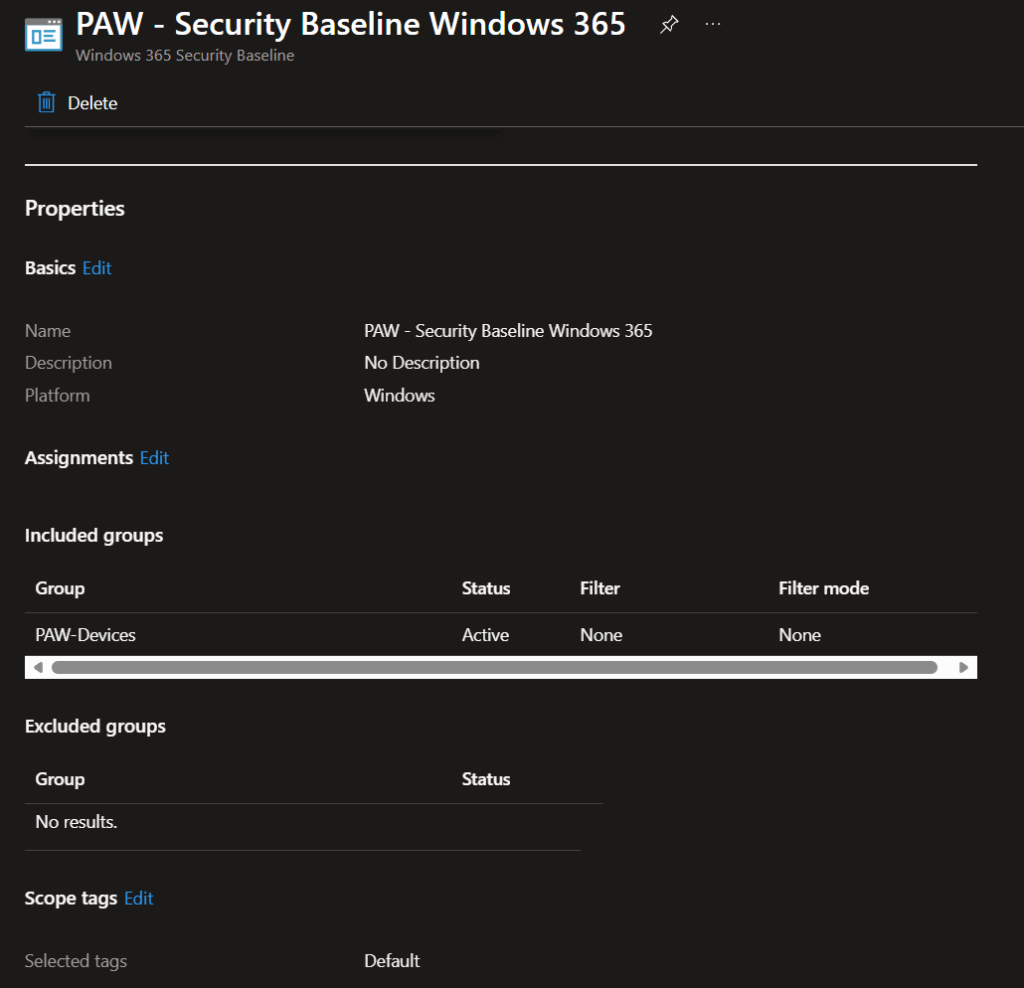
Deploy the Windows 365 security baseline as your starting point. This baseline is specifically designed for Cloud PCs and covers a broad set of OS-level hardening settings out of the box — things like credential protection, device guard, firewall configuration, and audit policies.
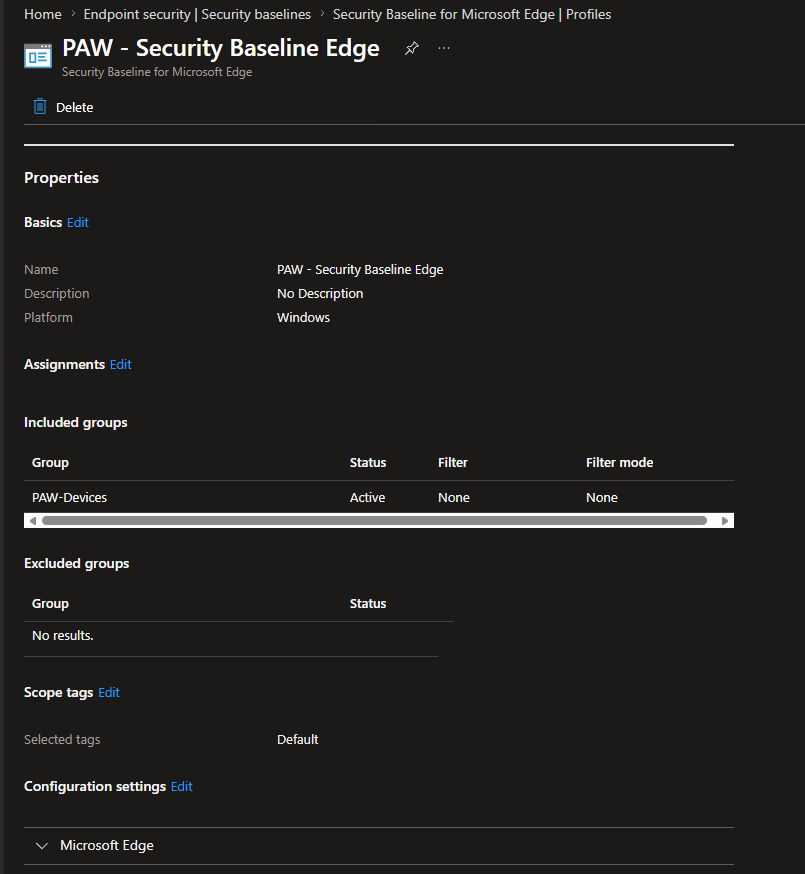
Put on the Microsoft Edge security baseline as well. Edge is the primary tool admins will use to reach portals like Entra, Intune, Azure, and Defender. The Edge baseline locks down browser behavior: it disables risky extensions, enforces SmartScreen, restricts developer tools, controls download behavior, and tightens session handling.
After applying both baselines, review the settings and adjust where needed. Baselines are starting points, not finish lines. For a PAW, you will likely want to go further on specific controls — tighter firewall rules, more aggressive attack surface reduction rules, or stricter credential isolation depending on your threat model.
Why it matters: Baselines give you a known-good floor. Without them, you are relying on default OS and browser settings that were designed for usability, not for protecting privileged sessions. Stacking the Windows 365 and Edge baselines together covers two of the most critical surfaces on the device. Besides, building your own baseline can be quite a hard work and remember, we only got 90 minutes.
Deploy App Control for Business
This is one of the most impactful controls you can put on a PAW, and one of the most underused. App Control for Business (formerly WDAC) lets you define exactly which applications and scripts are allowed to run on the device. Everything else is blocked by default.
For a PAW, start with a restrictive policy. Allow Windows components, Intune management agents, and the specific admin tools your team actually needs — remote management consoles, PowerShell (scoped), Edge, and whatever operational tooling is required. Deny everything else. No personal apps, no random installers, no unsigned scripts.
Deploy the App Control policy through Intune using the App Control for Business configuration profile. Use audit mode first to identify anything legitimate that would be blocked, then switch to enforce mode once you have validated the policy. Managed installer integration with Intune means apps deployed through Intune are automatically trusted, which simplifies ongoing maintenance.
Think of it this way: if security baselines set the volume, App Control decides who gets to play on stage at all.
Why it matters: Application control is the difference between a hardened device and a truly controlled one. Without it, an admin could still run unapproved software, scripts, or tools — intentionally or through compromise. With it, the PAW only executes what you explicitly allow.
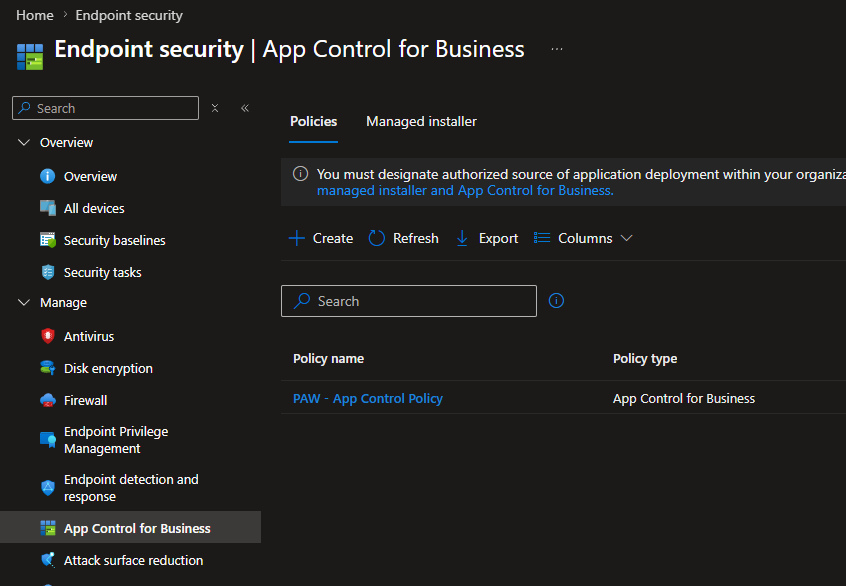
Note: This will set PowerShell to constrained language mode and also block PSADT deployed apps. So test this before set in production. But In my experience, just add PSADT as trusted publisher in the App Control policy. Constrained language mod, I have not had any issue with yet…..
Make sure you publish the apps needed in Company portal so the admins can install what ever they need for their daily work.
Build a Compliance Policy Specifically for the PAW
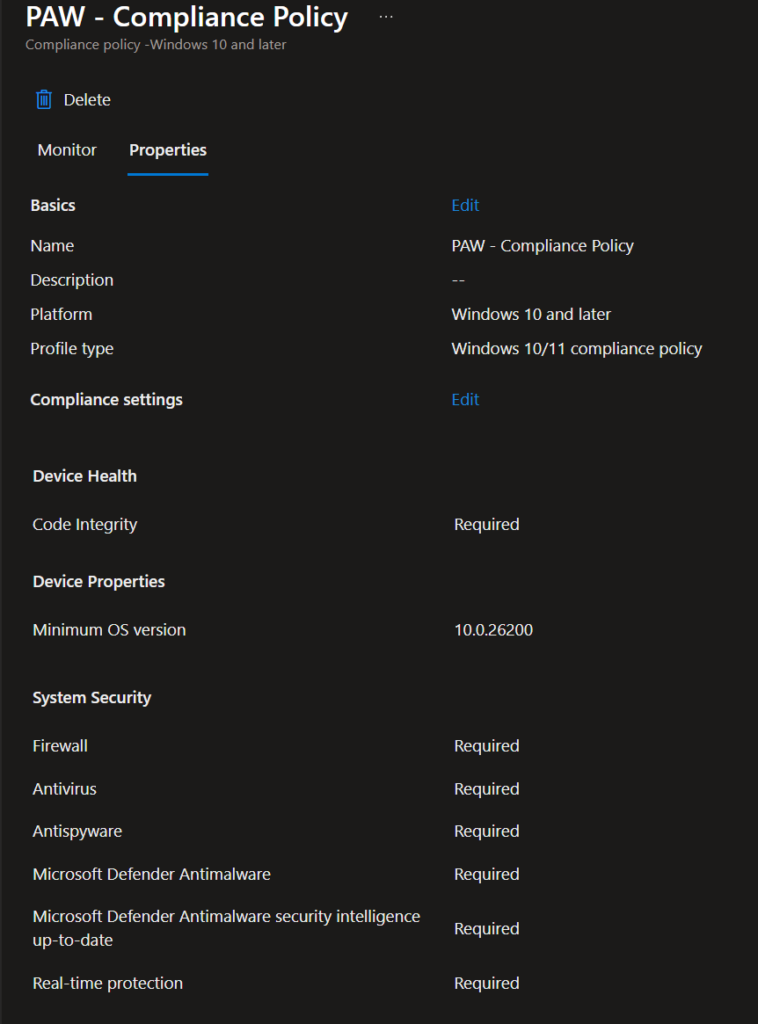
Create a dedicated compliance policy instead of reusing one from your standard fleet. A PAW has different expectations, and the compliance checks should reflect that.
Focus on signals that matter for this device type: OS version currency, encryption status, Defender antimalware active and up to date, firewall enabled, Secure Boot verified, code integrity enabled, and a clean Defender for Endpoint risk score. Set the compliance bar high — a PAW that drifts out of compliance should lose access quickly, not linger for days waiting for a grace period.
Tie non-compliance to real consequences through Conditional Access. A non-compliant PAW should be blocked from reaching admin portals and privileged resources immediately. No soft warnings, no seven-day remediation windows.
Why it matters: A privileged workstation that is out of compliance is worse than a regular endpoint that is out of compliance. The blast radius is bigger. Compliance on a PAW is not a checkbox — it is a gate.
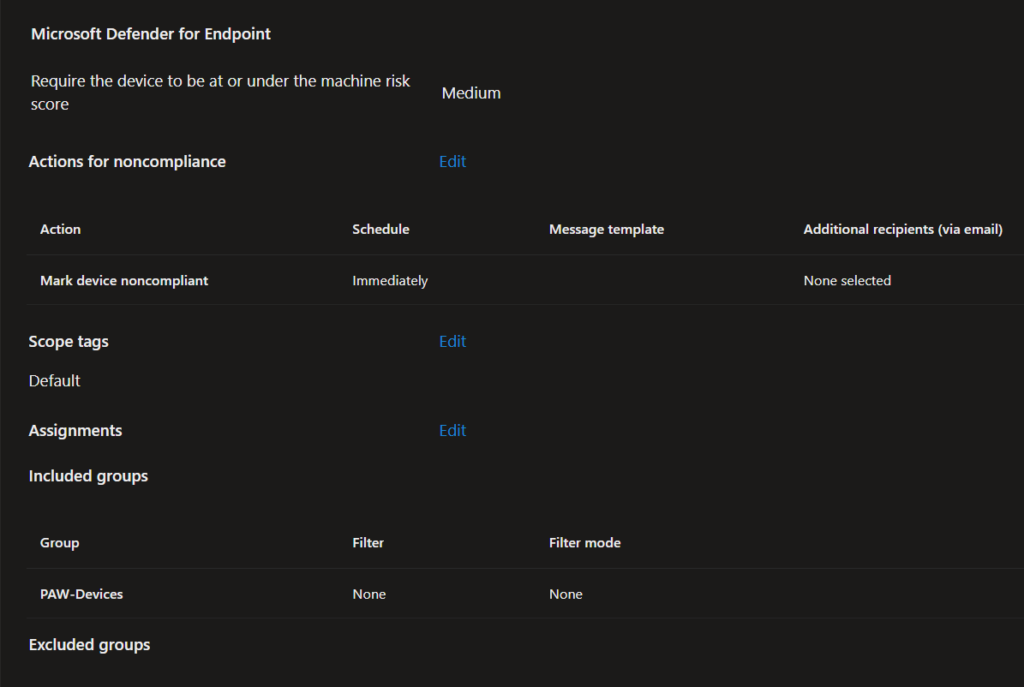
Enforce Windows 365 Access with Conditional Access
Create Conditional Access policies that tightly control who can sign in to the Windows 365 Cloud PC and under what conditions.
At a minimum, require phishing-resistant MFA for the connection. Require the device the admin is connecting from to be compliant — yes, this means the physical device and the Cloud PC both matter. Restrict access to approved locations if your operating model supports it. Block legacy authentication completely.
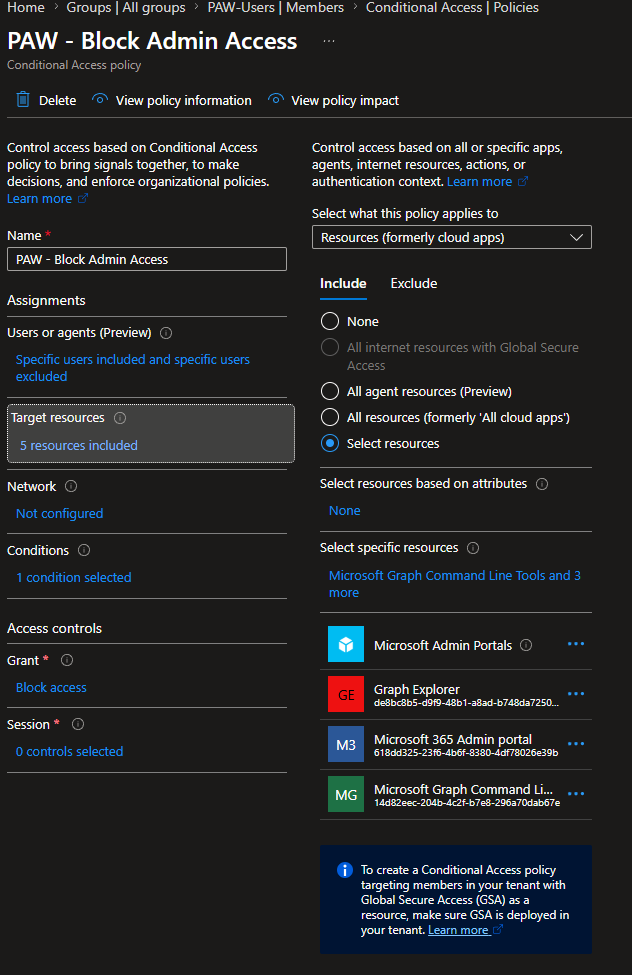
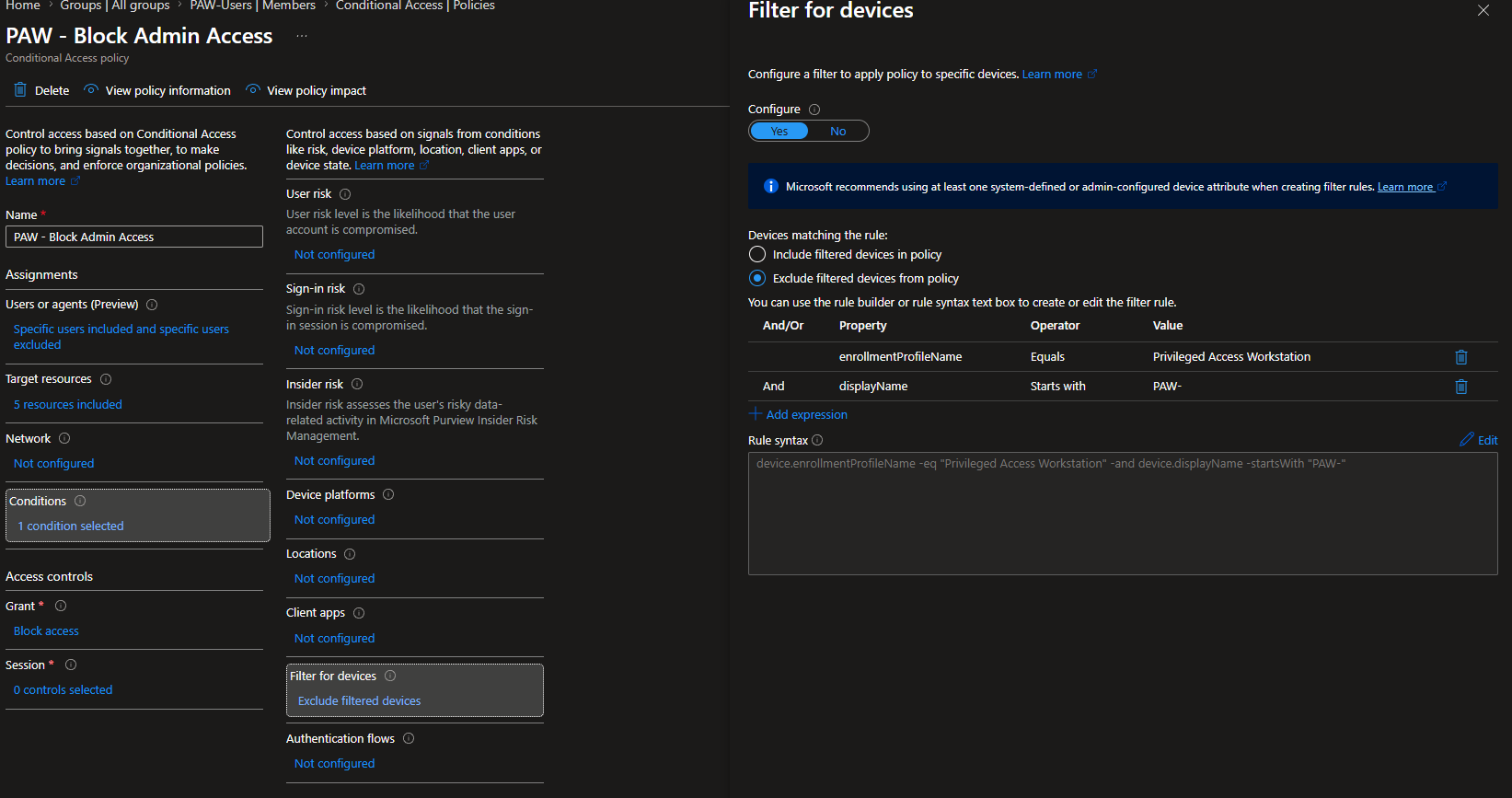
Build a second layer of Conditional Access around the admin portals themselves. Target apps like Azure portal, Microsoft 365 admin center, Entra admin center, Intune, Defender portal, and Exchange admin center. Require that access to these portals comes from a compliant device — specifically, the PAW — and require re-authentication or step-up auth where appropriate.
Why it matters: Hardening the Cloud PC is only half the story. You also need to harden the path into it and the path from it to the things it protects. Conditional Access is the connective tissue that ties identity, device, and resource access together.
Block Policy
Allow Policy i.e.. enforce phishing-resistant MFA.
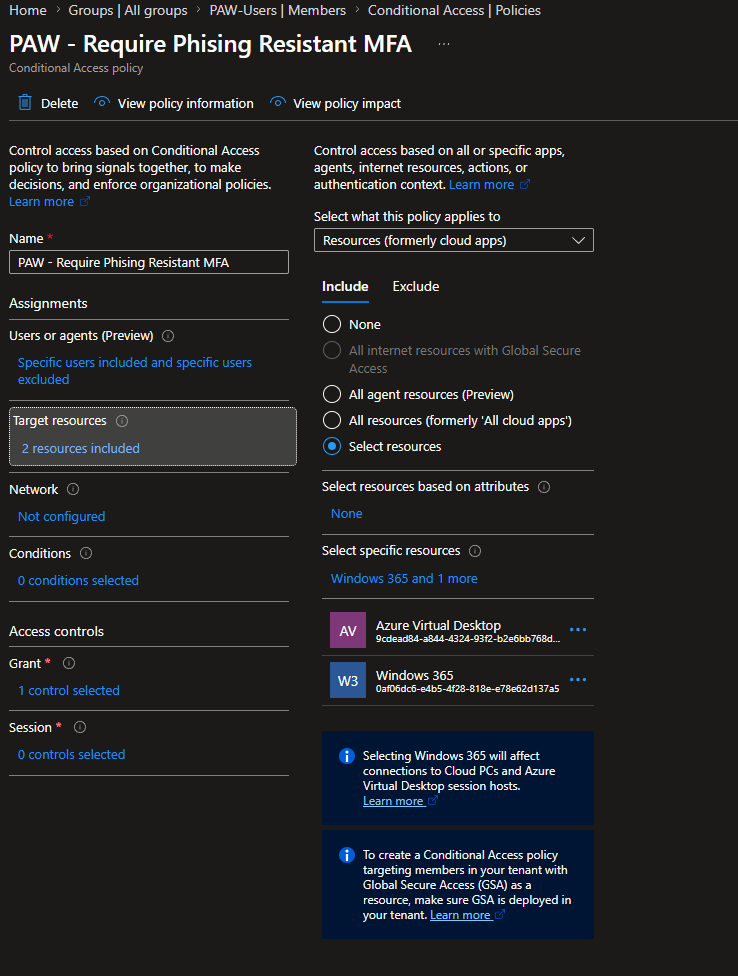
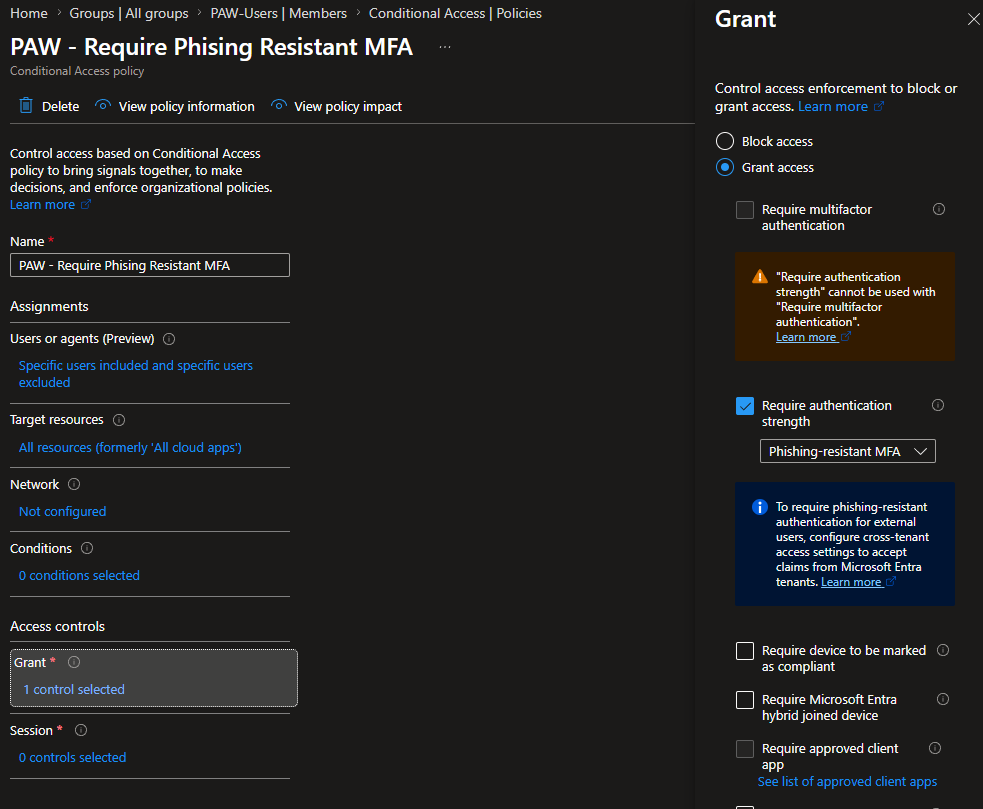
Both Conditional Access policies are assigned to the PAW-Users group. It will force the admins to use my locked down and managed PAWs to access the admin portals and Graph. As you can see these polices are not bulletproof but a really good starting point.
Require Phishing-Resistant Authentication
Use the strongest authentication method your environment can realistically support for privileged identities. That means FIDO2 security keys, Windows Hello for Business, or certificate-based authentication — methods that are resistant to phishing, token replay, and MFA fatigue attacks.
For PAW scenarios, FIDO2 keys are often the cleanest fit. They work well with Entra ID, they are portable, and they eliminate the risk of push notification approval attacks entirely. If your organization has already rolled out Windows Hello for Business, that works too — just make sure the PAW is configured to use it properly.
The key point is that traditional MFA methods like SMS, phone call, or even standard push notifications are not strong enough for privileged access. They were designed for a different threat level.
Why it matters: A hardened workstation behind strong Conditional Access policies does not help much if the sign-in itself can be intercepted, replayed, or socially engineered through fatigue. The authentication method is the front door — make it a vault door, not a screen door.
Keep the PAW Boring
Install only the admin tools that are actually needed. No Spotify, no Slack, no personal browser profiles, no “I just need it for five minutes” apps. Cut unnecessary software and reduce easy ways for data to leave the session.
Configure Windows 365 session redirection carefully. Disable clipboard redirection, drive redirection, and printer redirection unless there is a documented operational need. These are the quiet paths data uses to leave a privileged session and land somewhere less controlled.
That said, boring does not mean empty-handed. Admins still need their tools. If there are management consoles, remote administration utilities, or PowerShell modules that your team relies on — like the Microsoft Graph module, Exchange Online Management, or Az PowerShell — publish them as available apps in the Intune Company Portal. That way admins can install what they need on demand from an approved source, without hunting for downloads, running random installers, or asking someone to sideload a module. It keeps the toolbox close without leaving the door open.
Restrict outbound network access where possible. A PAW does not need to reach the entire internet. It needs to reach Microsoft admin portals, your management tooling, and update services. Everything else is noise — and noise is where attackers hide.
Less software, fewer integrations, tighter session controls. On a PAW, boring is not a bug. It is the entire design philosophy. Think of it as the rhythm section — not flashy, but the whole thing falls apart without it.
Why it matters: Every app, integration, and data path you add to a PAW increases the attack surface. The goal is not a comfortable desktop experience. The goal is a controlled, predictable, minimal-surface workspace where privileged work happens safely.
Final step
Add your admins to the PAW-Users group. It will start to provision a Windows 365 PAW for them with the settings and restrictions above. Done!
Note: Sending some kind of heads-up to these admins would be nice 🙂

Practical Notes
The biggest strength of a Windows 365 PAW is speed. You can setup up a controlled admin workspace much faster than rolling out dedicated physical privileged devices across a distributed workforce. Combined with a solid provisioning policy, security baselines, and App Control for Business, you can go from concept to enforced PAW in a matter of hours rather than months.
But speed can create bad habits.
The moment the PAW becomes the place where admins also check email, join random Teams calls, read documentation all day, or browse the web casually, the model starts to crack. A PAW does not fail all at once. It usually fails slowly — one convenience, one exception, one “temporary” change at a time.
That is why discipline matters more than branding. Calling a Cloud PC a PAW does not make it one. The identity model, the provisioning policy, the security baselines, the application control policy, the compliance posture, and the Conditional Access design are what make it behave like one.
It is also worth being honest about scope. Some organizations will need deeper network segmentation, stricter admin tiering, or hardware-backed attestation beyond what a Cloud PC provides today. Windows 365 gives you a solid, modern starting point — but it still needs to fit into a broader privileged access strategy that covers your specific threat model and compliance requirements.
Dig Deeper
A Windows 365 PAW gets you moving fast, but the real hardening story lives one layer deeper. This is where identity protection, Conditional Access architecture, privilege tiering, App Control tuning, endpoint monitoring, and incident response planning all come together.
Recommended reading:
- Implementing Privileged Access Workstations (PAWs) – Benefits, Challenges, and Security Considerations – Anders Ahl
- Principles for secure privileged access workstations (PAWs) – NCSC
- Use security baselines to help secure Windows devices you manage with Microsoft Intune – MS
Common questions I get a lot around the PAWs
Is Windows 365 a PAW by default?
No. Windows 365 is a platform you can use to deliver a PAW, but the security outcome depends entirely on how you provision, configure, and control it. Without dedicated policies, baselines, and access controls, it is just another Cloud PC.
Is this mostly useful for hybrid environments?
It works well in cloud-only environments too, but hybrid environments usually benefit more because privileged access tends to be more complex, more distributed, and more exposed across different management planes.
Do I still need PIM if I have a dedicated PAW?
Yes. The PAW protects the workspace. PIM reduces standing privilege. Those are different controls solving different problems, and they work best together.
Should admins use the PAW for normal daily work?
No. The PAW should stay focused exclusively on privileged activity. The more normal productivity you mix into it, the weaker the isolation model becomes and the more the attack surface grows.
Why App Control for Business instead of just blocking installs?
Blocking installs only prevents new software from being added. App Control defines what is allowed to execute at all — including scripts, DLLs, and unsigned binaries. It is a much stronger control for a privileged workstation.
Can I use a custom image for the PAW Cloud PC?
Yes. You can create a custom Windows 11 Enterprise image with your approved admin tools prebaked, then reference it in the provisioning policy. This gives you a faster, more consistent deployment and can avoid post-provisioning software installs.
Should I keep drive redirection and clipboard blocked on the PAW?
Windows 365 blocks drive redirection and clipboard redirection by default, which is a solid starting point for a PAW. That said, real-world admin work does not always fit neatly into a fully locked-down session. There are legitimate scenarios where an admin needs to paste a user list from an email, copy an error message into a ticket, or move a CSV into a management tool. Blocking clipboard entirely can slow those workflows down to the point where people start finding workarounds — and workarounds are usually worse than a controlled exception.
The pragmatic approach is to evaluate how your admins actually work. If clipboard access is needed, consider enabling it in a controlled way — for example, allowing text-only clipboard redirection while keeping drive and printer redirection disabled. Document the decision, scope it to the PAW group, and review it periodically. The goal is not to make the PAW unusable. It is to make sure every open channel is a deliberate choice, not an oversight. Think of it like a setlist — you pick what plays, nothing gets added on the fly.
Now Go Deploy It!
You have read the steps. None of them require a six-month project plan, a dedicated team, or a procurement cycle. A separate admin account, a provisioning policy, security baselines, App Control, a compliance policy, Conditional Access, and phishing-resistant auth — all of this can be stood up in a single afternoon. Realistically, you are looking at under 90 minutes from the first click in the Intune portal to a hardened, policy-enforced Cloud PC that is ready for privileged work. Well if you have access to configure all parts 🙂
The tooling is already in your tenant. The baselines are prebuilt. The provisioning policy is a wizard. The hardest part is not the technology — it is making the decision to stop doing admin work from the same device where you browse Reddit and open calendar invites from people you have never met.
So close this tab, open Intune, and start building. Your admin accounts deserve a stage of their own — not a shared floor with the rest of the mosh pit.