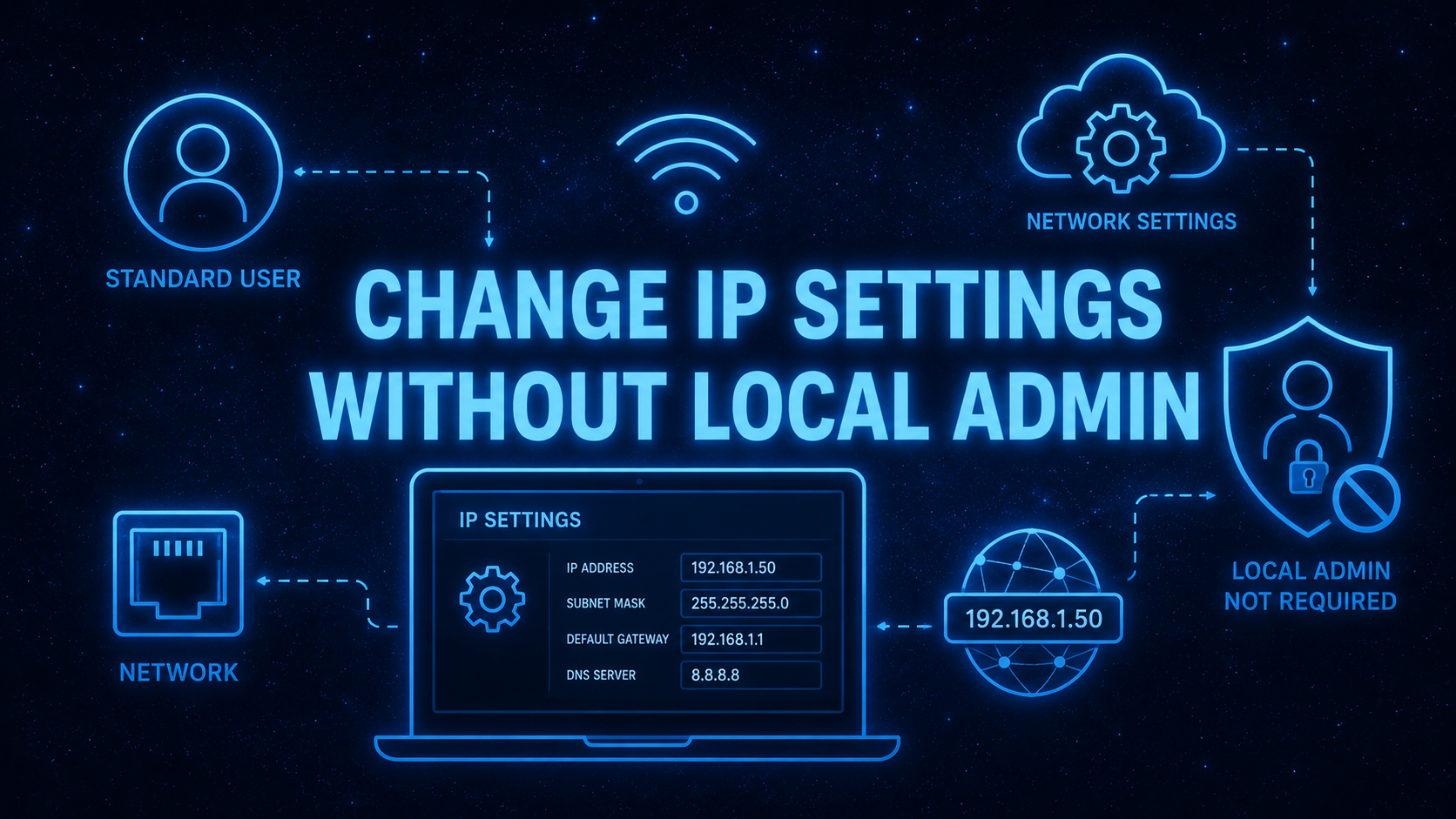
Picture a field engineer in a factory hall, laptop open, staring at a managed switch that only answers on a hard-coded subnet. To reach it they need to flip their NIC from DHCP to static — a five-second job, except they’re a standard user in your locked-down, admin-less environment, and Windows politely refuses.
The clean answer is the built-in Network Configuration Operators group: just enough rights to manage network interfaces, nothing more. Least privilege stays intact. Simon Skotheimsvik already wrote a great walkthrough on getting users into that group via Intune — if you haven’t read How to Allow Field Engineers Change Their Local IP Address, start there.
But the track doesn’t quite end on the final chord. Two things are still left hanging:
- Opening the network settings still throws a UAC prompt — so the standard user gets stopped before they can change anything.
- There’s no function to remove a user from the group again — once they’re in, they stay in, which quietly chips away at the least-privilege model you worked so hard to build.
The fix: a PSADT package wrapped as a Win32 app
Rather than fight UAC and the missing cleanup logic separately, I bundled both problems into a single deployable unit. I packaged a PSADT (PowerShell App Deployment Toolkit) script and wrapped it as a Win32 app. On install it does two things:
- Drops a desktop shortcut that opens ncpa.cpl directly — without throwing a UAC prompt at the standard user.
- Adds the signed-in user to the local Network Configuration Operators group.
The engineer clicks the shortcut, lands straight in Network Connections, and actually has the rights to change the adapter. No elevation dialog, no dead end.
Below you can see the code I added to the PSADT script for making it happen.
Install Section:
    Copy-ADTFile -Path "$($adtSession.DirFiles)\networksettings.ico" -Destination "$envProgramData\Intune\networksettings.ico"


    $activeUser  = Get-ADTLoggedOnUser | Select-Object -First 1
    $userProfile = (Get-CimInstance Win32_UserProfile |
                    Where-Object { $_.SID -eq $activeUser.SID }).LocalPath
    $userDesktop = Join-Path $userProfile 'Desktop'

    If ($userProfile) {
        New-ADTShortcut -Path "$userDesktop\Network Settings.lnk" `
            -TargetPath 'ncpa.cpl' `
            -IconLocation "$envProgramData\Intune\networksettings.ico" `
            -WorkingDirectory '%HOMEDRIVE%\%HOMEPATH%'
        Write-ADTLogEntry -Message "Shortcut created for $($activeUser.NTAccount)." -Severity 1
    } Else {
        Write-ADTLogEntry -Message 'Could not resolve user profile path.' -Severity 2
    }

    # Add logged on user to Network Configuration Operators

    $loggedOnUser = (Get-CimInstance -ClassName Win32_ComputerSystem).UserName

    If ($loggedOnUser) {
        $group = Get-LocalGroup | Where-Object { $_.SID.Value -eq 'S-1-5-32-556' }

        If ($group) {
            Try {
                Add-LocalGroupMember -Group $group -Member $loggedOnUser -ErrorAction Stop
                Write-ADTLogEntry -Message "User '$loggedOnUser' was added to group '$($group.Name)'."
            } Catch {
                If ($_.Exception -is [Microsoft.PowerShell.Commands.MemberExistsException] -or
                    $_.Exception.Message -match 'already a member') {
                    Write-ADTLogEntry -Message "User '$loggedOnUser' is already a member of '$($group.Name)'."
                } Else {
                    Write-ADTLogEntry -Message "Failed to add '$loggedOnUser' to '$($group.Name)': $($_.Exception.Message)" -Severity 2
                }
            }
        } Else {
            Write-ADTLogEntry -Message 'Group SID S-1-5-32-556 not found on this system.' -Severity 2
        }
    } Else {
        Write-ADTLogEntry -Message 'No logged-on user found.' -Severity 2
    }
Uninstall section:
   Remove-ADTFile -Path "$envProgramData\Intune\networksettings.ico"

    $loggedOnUser = (Get-CimInstance -ClassName Win32_ComputerSystem).UserName

    If ($loggedOnUser) {
        $userSID     = (New-Object System.Security.Principal.NTAccount($loggedOnUser)).Translate(
                        [System.Security.Principal.SecurityIdentifier]).Value
        $userProfile = (Get-CimInstance -ClassName Win32_UserProfile |
                        Where-Object { $_.SID -eq $userSID }).LocalPath
        $shortcut    = Join-Path $userProfile 'Desktop\Network Settings.lnk'

        If ($userProfile) {
            If (Test-Path $shortcut) {
                Try {
                    Remove-Item -Path $shortcut -Force -ErrorAction Stop
                    Write-ADTLogEntry -Message "Shortcut '$shortcut' removed for user '$loggedOnUser'."
                } Catch {
                    Write-ADTLogEntry -Message "Failed to remove shortcut '$shortcut': $($_.Exception.Message)" -Severity 2
                }
            } Else {
                Write-ADTLogEntry -Message "Shortcut '$shortcut' not found, skipping."
            }
        } Else {
            Write-ADTLogEntry -Message "Could not resolve profile path for '$loggedOnUser'." -Severity 2
        }
    } Else {
        Write-ADTLogEntry -Message 'No logged-on user found.' -Severity 2
    }


# Remove user from local group

    $loggedOnUser = (Get-CimInstance -ClassName Win32_ComputerSystem).UserName

    If ($loggedOnUser) {
        $group = Get-LocalGroup | Where-Object { $_.SID.Value -eq 'S-1-5-32-556' }

        If ($group) {
            Try {
                Remove-LocalGroupMember -Group $group -Member $loggedOnUser -ErrorAction Stop
                Write-ADTLogEntry -Message "User '$loggedOnUser' was removed from group '$($group.Name)'."
            } Catch {
                If ($_.Exception -is [Microsoft.PowerShell.Commands.MemberNotFoundException] -or
                    $_.Exception.Message -match 'not a member') {
                    Write-ADTLogEntry -Message "User '$loggedOnUser' is not a member of '$($group.Name)', skipping."
                } Else {
                    Write-ADTLogEntry -Message "Failed to remove '$loggedOnUser' from '$($group.Name)': $($_.Exception.Message)" -Severity 2
                }
            }
        } Else {
            Write-ADTLogEntry -Message 'Group SID S-1-5-32-556 not found on this system.' -Severity 2
        }
    } Else {
        Write-ADTLogEntry -Message 'No logged-on user found.' -Severity 2
}Wrapp and deploy as an Win32 into Intune.
Deployment and assignments
This is where the cleanup problem gets solved — and it’s all in how you assign the app.
Create an Entra ID group, e.g. Intune-Network Configuration Operators, and assign the app’s Install to it. Membership follows the user, so wherever an authorized engineer signs in, the capability comes with them.
For the detection I use a detection script:
# Define the name of the file or shortcut on the desktop
$FileName = "Network Settings.lnk" # Change this to your target file

# Get the active logged on user
$Username = (Get-WmiObject Win32_ComputerSystem | Select-Object -ExpandProperty UserName).Split('\')[-1]

# Dynamically resolve the user's desktop path
$UserDesktop = "C:\Users\$Username\Desktop\$FileName"

# Check if the file exists
if (Test-Path -Path $UserDesktop) {
    Write-Host "Application detected on user desktop."
    exit 0
} else {
    Write-Host "Application not detected on user desktop."
    exit 1
}
Then comes the encore: assign Uninstall to All Devices, with the group above set as an exclusion. Any device that isn’t a sanctioned engineer machine gets the package pulled — which removes the user from the group and cleans up the shortcut. That’s your “remove from the group again” mechanism, running automatically across the fleet.
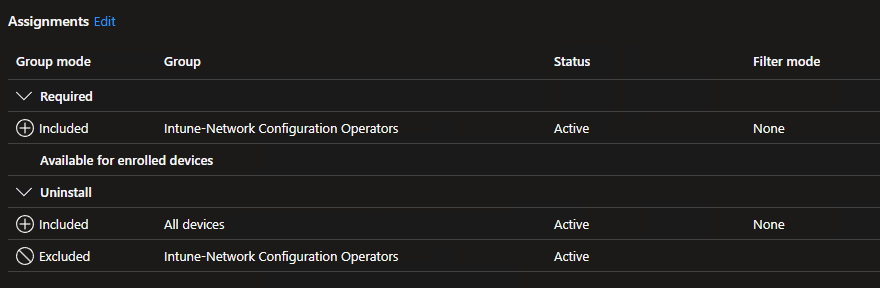
Finally, add the engineers’ devices that genuinely need to change IPs to the excluded group so they keep the capability and don’t get caught by the uninstall sweep.
The result is self-cleaning: the right people get the right rights on the right machines, and everything else gets tidied up on its own — least privilege intact.
⚠️ One thing to be aware of: because the user is added to the local Network Configuration Operators group, they’ll carry those same permissions on every device they sign into — not just their primary machine. Wherever they log in, they can change network settings. Keep that in mind when deciding who lands in the group, especially in environments with shared or hot-desk devices.
Might tbe cleaner ways to get this done but this solves my pain for the moment. got any better idea? Please do share it!!