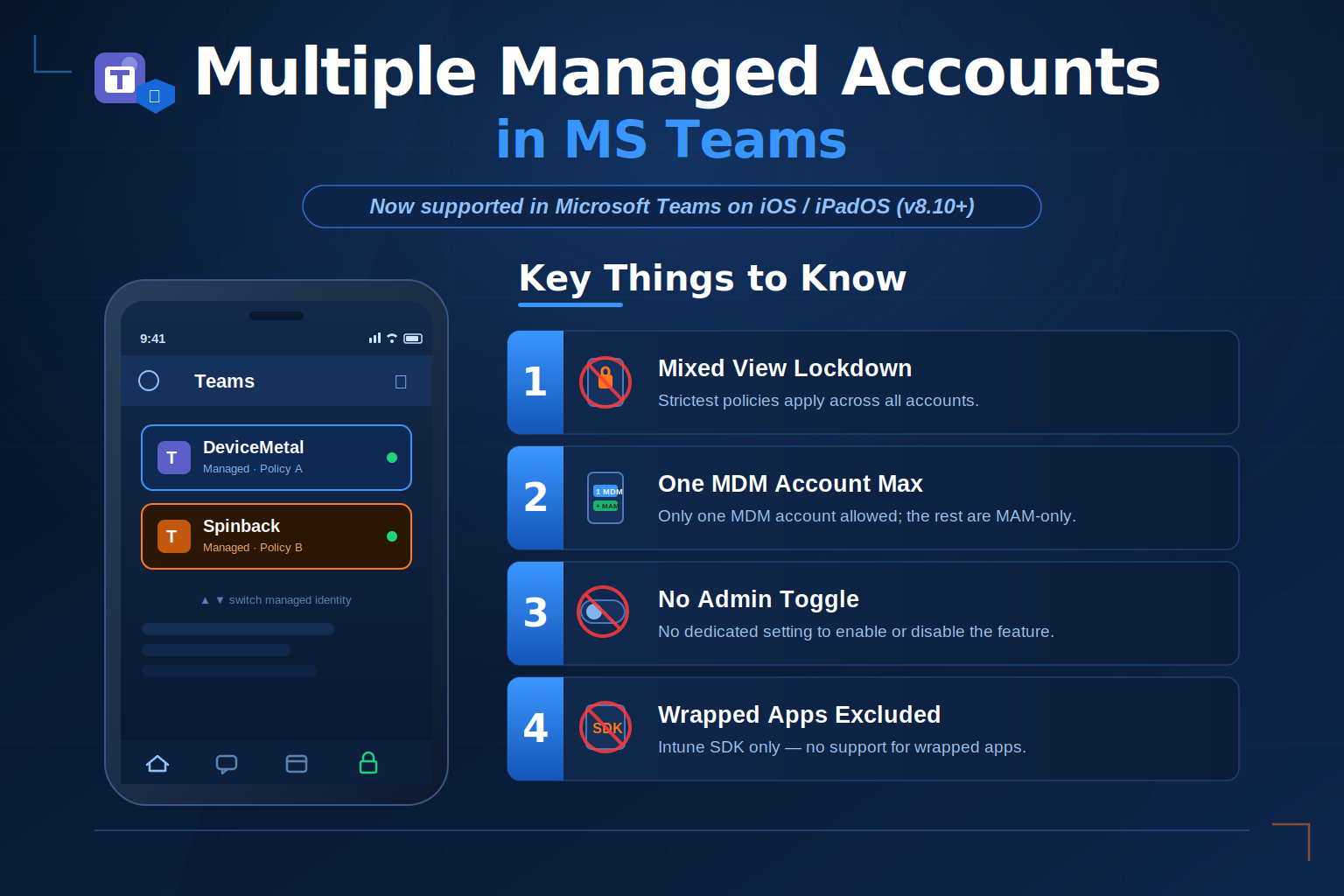
Microsoft is rolling out Multiple Managed Accounts (MMA) for Intune MAM, starting with Microsoft Teams on iOS. Users can finally sign into one app with multiple managed identities — each protected by its own app protection policy. Consultants, M&A scenarios, and shared-mailbox users rejoice. But watch out for mixed-view lockdown behavior.
What Is Multiple Managed Accounts?
For years, Intune MAM had one hard limitation that drove consultants and multi-company employees absolutely nuts: you could only have one managed account per app. Try to add a second managed identity, and the app would kick out the first one. One throne, one king.
That limitation is finally being fixed.
Multiple Managed Accounts (MMA) is a new Intune MAM capability that lets users sign into a supported app with more than one managed identity — simultaneously — while each account is governed by its own app protection policy, as configured by each respective admin.
💡 This feature is rolling out gradually and may not be available in your tenant yet (as of June 2026).
Who Is This For?
The MMA feature targets three main scenarios:
Consultants across organizations — A contractor who works for two different clients can now have both managed accounts active in Teams, with each client’s MAM policies enforced independently.
Mergers and acquisitions — Employees in transition don’t have to choose one identity during the chaos of an M&A. Both tenants’ MAM policies can coexist on the same device and app.
Multiple mailboxes in the same tenant — Help desk staff or shared-mailbox managers can handle multiple accounts without constantly switching apps or profiles.
Segmented View vs. Mixed View
MMA-enabled apps handle multiple accounts in one of two architecturally different ways. This distinction matters a lot for how policies get enforced.
Segmented View
The app shows one account at a time. The user switches between accounts manually, and policy enforcement (PIN, conditional launch, data transfer restrictions) applies to the currently active account only.
Microsoft Teams is a segmented view app. When you’re in the context of Tenant A, Tenant A’s policies govern your session.
Mixed View
The app aggregates data from multiple accounts into a shared view — like a unified inbox or combined calendar. Policy enforcement applies when the app opens, and all account policies are evaluated independently at that point.
Microsoft Outlook is the canonical mixed-view app.
The Mixed View Warning You Need to Hear
This is where admins need to pay close attention. Mixed view has a significant and potentially surprising behavior:
Mixed views always enforce full lockdown (most restrictive) behavior — regardless of what individual account policies say.
In practice, this means:
- Cut, copy, and paste are fully blocked, even within the app itself
- Screenshots and screen capture are blocked
- All other data protection controls default to the most restrictive option available
And here’s the part that might catch you off guard: this applies even with a single managed account, as long as there are unmanaged accounts also present in the mixed view. So if a user has one work account and one personal account in Outlook — Intune treats that as a mixed-view scenario and locks it down hard.
What’s Supported Right Now
As of June 2026, MMA is supported in Microsoft Teams for iOS/iPADOS.
More apps and platforms are coming. Outlook is the obvious next candidate given it’s mentioned as a mixed-view example in the docs, but there’s no confirmed release date yet.
Important constraints:
- Only one account can be MDM+MAM enrolled — additional accounts must be MAM-only. Multiple MDM enrollments on the same device are not supported.
- All accounts can be MAM-only.
- Only apps that support multiple identities via the Intune SDK are eligible. Intune-wrapped apps are explicitly excluded. PowerApps is specifically called out as out of scope.
Admin Controls — Or Lack Thereof
Here’s something worth flagging: MMA doesn’t have a dedicated on/off switch in the Intune portal. It’s a capability that activates when the app supports it, not a policy setting you configure.
If you need to restrict MMA on iOS, you can use the IntuneMAMAllowedAccountsOnly setting. This wasn’t designed specifically for MMA, but its side effect is that it locks the app to a single managed account — effectively disabling MMA even in apps that otherwise support it.
Beyond that, the usual MAM levers apply: your existing app protection policies, conditional launch settings, and tenant-level controls are what shape the experience. MMA just extends the surface they govern.
PIN, Biometrics, and MTD Behavior
A few specifics worth knowing when multiple managed accounts are in play:
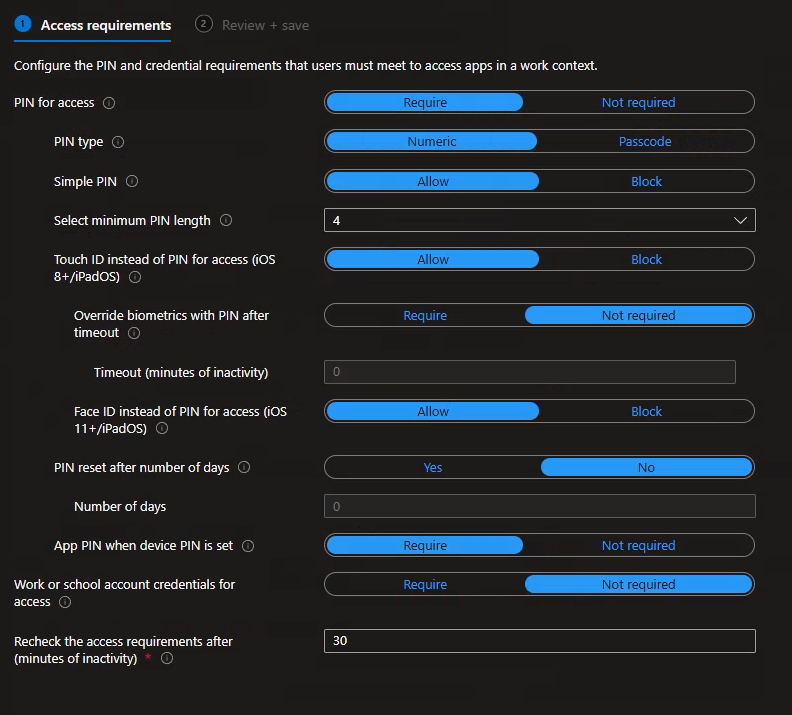
PIN and biometric prompts: If all managed accounts require biometrics, the user sees one prompt based on the configured frequency. If accounts have mixed requirements (one requires PIN, another biometrics), the user may be prompted separately for each method. This is admin-configured behavior, not something users can override.
Third-party keyboards on iOS: Blocked at the app level, regardless of which account is active or what MMA view type is in use. Identity-agnostic.
Mobile Threat Defense (MTD): Device threat level is evaluated per Entra device record (device ID), not per managed account. In same-tenant scenarios, multiple managed accounts may share the same threat level report. In cross-tenant scenarios, each tenant gets a separate device record, so MTD may report independently per tenant — but this depends heavily on how your MTD vendor integrates with Entra. Validate this with your vendor before relying on MTD enforcement for multi-account setups.
What This Means for Your Environment
If you manage a tenant with consultants, contractors, or staff in M&A transitions, MMA is a meaningful quality-of-life improvement that doesn’t require any configuration changes on your end — it just starts working as apps add support.
The two things you should proactively check:
- Review your Outlook mixed-view exposure. If users have personal accounts alongside managed accounts in Outlook, the mixed-view lockdown behavior may create friction or support tickets. Get ahead of it by informing your users.
- Check
IntuneMAMAllowedAccountsOnlyif you’re on iOS and want to restrict MMA in specific scenarios. It’s your current lever until Microsoft ships proper admin controls.
The MC message (MC1290818) covers the rollout timeline as June–July 2026, so you should be seeing this in most tenants within the coming weeks.
FAQ
Does MMA require any special Intune license? No. It’s part of the existing Intune MAM capability and doesn’t require additional licensing beyond what you already need for MAM.
Can I have two MDM-enrolled accounts on the same device? No. Only one account can be MDM+MAM managed. Additional accounts must be MAM-only.
Does this work on Android? Not yet. Initial support is iOS/iPadOS only with Teams v8.10.0+. Android support is on the roadmap but no date has been announced.
What if a user tries to add a second managed account in an app that doesn’t support MMA? The app will prompt the user to remove the existing managed account before adding the new one — same behavior as before MMA existed.
Are Intune-wrapped apps supported? No. MMA requires Intune SDK integration. Wrapped apps are explicitly excluded.
How do I troubleshoot if a user can’t add a second managed account? First, confirm the app supports MMA and meets the version requirement. Second, check whether IntuneMAMAllowedAccountsOnly is restricting the account. Third, verify the app is MMA-compatible — not every multi-identity app is MMA-enabled.
My users are suddenly getting stricter copy/paste restrictions in Outlook — why? If a user has any unmanaged account alongside a managed account in Outlook (a mixed-view scenario), full lockdown behavior applies. This is expected MMA behavior, not a policy misconfiguration.