
When it comes to managing BIOS passwords on HP devices, the real challenge is rarely setting them once. The hard part is handling them at scale, keeping them consistent, and avoiding fragile manual processes that turn into pure operational noise later on.
In an ideal world, we want to manage this through HP Connect / HP’s partner-focused portal experience together with HP Sure Admin, rather than relying only on traditional password-based methods. HP positions HP Connect as a cloud-based way to manage BIOS settings, and HP Sure Admin is designed to move away from classic BIOS passwords by using certificate-based authentication instead. That makes the whole setup cleaner, more modern, and a lot easier to operate in larger environments.
But sometimes we cannot use the HP Connect Portal or we have old password set. We can manage them directly and at scale with Powershell and Win32 app.
So start by downloading the HP BIOS Configuration Utility (BCU) Download the files and extract them. Now we start creating our password files.
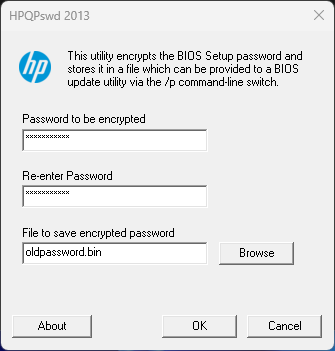
Start HpqPswd64.exe and set the old password for current devices. Do this twice so we get another file with the new password.
We will use this script together with the files from the HP folder to run on the device to change or set the password.
# ------------------------------------------------------------
# Section 1: Configure Windows Event Log settings for this script
# Purpose:
# - Define where script status/error messages will be written.
# - Create the event source once if it does not already exist.
# ------------------------------------------------------------
$EventLogName = "Application"
$EventSource = "HPBIOSMGMT"

if (-not [System.Diagnostics.EventLog]::SourceExists($EventSource)) {
    New-EventLog -LogName $EventLogName -Source $EventSource
}

# ------------------------------------------------------------
# Section 2: Logging helper function
# Purpose:
# - Provide a reusable function to write structured entries
#   (Information/Warning/Error) to the configured Event Log source.
# ------------------------------------------------------------
function Write-ScriptEvent {
    param(
        [Parameter(Mandatory = $true)]
        [string]$Message,

        [ValidateSet("Information", "Warning", "Error")]
        [string]$EntryType = "Information",

        [int]$EventId = 1000
    )

    Write-EventLog -LogName $EventLogName -Source $EventSource -EntryType $EntryType -EventId $EventId -Message $Message
}

# ------------------------------------------------------------
# Section 3: Script configuration values
# Purpose:
# - Define BCU paths and registry values used as a detection marker.
# ------------------------------------------------------------
$BcuPath = Join-Path -Path $PSScriptRoot -ChildPath "BiosConfigUtility64.exe"
$NewPasswordFile = Join-Path -Path $PSScriptRoot -ChildPath "newpassword.bin"
$CurrentPasswordFile = Join-Path -Path $PSScriptRoot -ChildPath "oldpassword.bin"
$DetectionRegPath = "HKLM:\SOFTWARE\Intune\HPClientMgmt"
$DetectionRegName = "PasswordSet"
$FallbackTriggerExitCodes = @(10)
$FallbackTriggerPatterns = @(
    'Password is set, but password provided is invalid',
    'Password is set, but no password file is provided'
)

# ------------------------------------------------------------
# Section 4: Ensure prerequisites and detection registry path exist
# Purpose:
# - Create the registry key if missing.
# - Stop early if BCU or password files are missing.
# ------------------------------------------------------------
if (-not (Test-Path -Path $DetectionRegPath)) {
    New-Item -Path $DetectionRegPath -Force | Out-Null
}

if (-not (Test-Path -Path $BcuPath)) {
    Write-ScriptEvent -Message "BCU executable not found at $BcuPath" -EntryType Error -EventId 1100
    exit 1
}

if (-not (Test-Path -Path $NewPasswordFile)) {
    Write-ScriptEvent -Message "New password file not found at $NewPasswordFile" -EntryType Error -EventId 1101
    exit 1
}

if (-not (Test-Path -Path $CurrentPasswordFile)) {
    Write-ScriptEvent -Message "Current password file not found at $CurrentPasswordFile" -EntryType Error -EventId 1102
    exit 1
}

# ------------------------------------------------------------
# Section 5: Helper functions for BCU execution and detection marker
# Purpose:
# - Run BCU and capture its output for decision-making.
# - Write the Intune detection marker after success.
# ------------------------------------------------------------
function Set-DetectionMarker {
    # Recreate the property to guarantee registry type is String.
    Remove-ItemProperty -Path $DetectionRegPath -Name $DetectionRegName -ErrorAction SilentlyContinue
    New-ItemProperty -Path $DetectionRegPath -Name $DetectionRegName -PropertyType String -Value "True" -Force | Out-Null
}

function Invoke-BcuCommand {
    param(
        [Parameter(Mandatory = $true)]
        [string[]]$Arguments,

        [Parameter(Mandatory = $true)]
        [int]$StartEventId,

        [Parameter(Mandatory = $true)]
        [string]$Description
    )

    Write-ScriptEvent -Message "Running BCU command: $Description" -EventId $StartEventId

    $output = & $BcuPath @Arguments 2>&1 | Out-String
    $exitCode = $LASTEXITCODE

    if ([string]::IsNullOrWhiteSpace($output)) {
        $output = "<no output>"
    }

    $fallbackRequired = $FallbackTriggerExitCodes -contains $exitCode
    foreach ($pattern in $FallbackTriggerPatterns) {
        if ($output -match [regex]::Escape($pattern)) {
            $fallbackRequired = $true
            break
        }
    }

    return [pscustomobject]@{
        ExitCode = $exitCode
        Output = $output.Trim()
        FallbackRequired = $fallbackRequired
    }
}

# ------------------------------------------------------------
# Section 6: Try to set BIOS password with fallback behavior
# Purpose:
# - First try BCU with only the new password file.
# - If BCU indicates a current password is required (known output
#   patterns or known return codes), retry with the current password
#   file as well.
# ------------------------------------------------------------
$firstAttempt = Invoke-BcuCommand -Arguments @("/npwdfile:$NewPasswordFile") -StartEventId 1001 -Description "/npwdfile:newpassword.bin"

if ($firstAttempt.ExitCode -eq 0) {
    Set-DetectionMarker
    Write-ScriptEvent -Message "BIOS password set succeeded on the first attempt. Detection key written." -EventId 1002
    exit 0
}

Write-ScriptEvent -Message "First BCU attempt failed with exit code $($firstAttempt.ExitCode). Output: $($firstAttempt.Output)" -EntryType Warning -EventId 1003

if ($firstAttempt.FallbackRequired) {
    Write-ScriptEvent -Message "BCU indicated that a current BIOS password is required on the first attempt. Retrying with /cpwdfile." -EventId 1004

    $secondAttempt = Invoke-BcuCommand -Arguments @("/npwdfile:$NewPasswordFile", "/cpwdfile:$CurrentPasswordFile") -StartEventId 1005 -Description "/npwdfile:newpassword.bin /cpwdfile:newpassword.bin"

    if ($secondAttempt.ExitCode -eq 0) {
        Set-DetectionMarker
        Write-ScriptEvent -Message "BIOS password set succeeded on the fallback attempt. Detection key written." -EventId 1006
        exit 0
    }

    Write-ScriptEvent -Message "Fallback BCU attempt failed with exit code $($secondAttempt.ExitCode). Output: $($secondAttempt.Output)" -EntryType Error -EventId 1103
    exit 1
}

Write-ScriptEvent -Message "First BCU attempt failed for a reason that did not match fallback triggers (output patterns or return codes). Fallback was not attempted. Output: $($firstAttempt.Output)" -EntryType Error -EventId 1104
exit 1Save it in your Win32 app folder as Set-HPBIOSPassword.ps1 or whatever. This is the structure we need in the folder before we wrap it with IntuneWinAppUtil.exe.
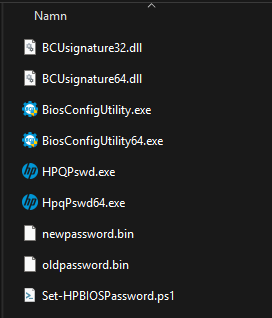
The important parameters in the script
This script keeps things fairly straightforward, and a few values matter more than the rest:
- $NewPasswordFile
This is the file with the new BIOS password you want the device to use. - $CurrentPasswordFile
This is the file with the current BIOS password, used when you want to rotate or change an existing one. If the device already has a password and this value is wrong, the change will fail. - $DetectionRegPath
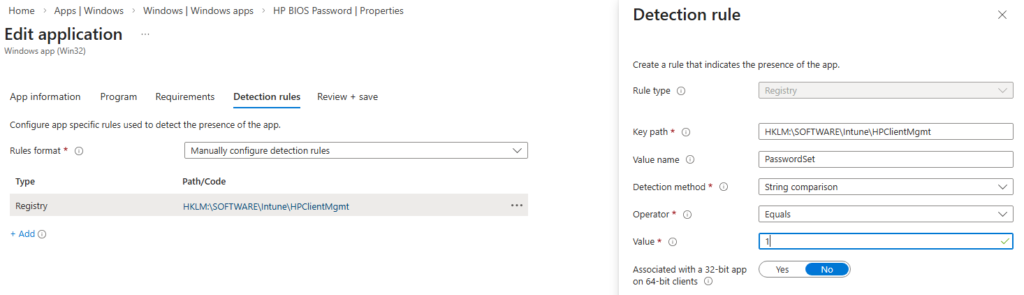
This defines where the script writes its custom detection key in the registry. - $DetectionRegName
This is the registry value name used by Intune for detection. In this case, it is used to confirm that the password action completed successfully. Update the value if you update the script and needs to push it again.
The script will log in the Event log in Application and as source HPBIOSMGMT. It will first try to set a password and if that fails it will try to set it again put also have the old password as input.
Publish and set passwords
Publish the app as an regular Win32 app.
Install command:
PowerShell.exe -ExecutionPolicy Bypass -NoProfile -File Set-HPBIOSPassword.ps1
Detection:
As always run it on a small set of test devices first. Verify both the entries in the event viewer and of course test the password to get in the BIOS 🙂