Have you ever upgraded your smartphone and marveled at how quickly everything just works again? You log in, and suddenly all your apps, settings, and wallpapers are exactly where you left them. Until recently, that seamless experience was merely a dream for IT administrators managing Windows PCs. But with the introduction of Windows Backup for Organizations, that dream is now a reality.
This isn’t just a simple file-save feature—it’s an enterprise-grade tool designed to preserve the entire user experience and make transitions between devices completely effortless.
What is Windows Backup for Organizations?
At its core, this is a cloud-based backup solution that securely saves a user’s most important settings and preferences to the Microsoft cloud. It works a bit like the legacy “roaming profiles,” but it is modern, secure, and built specifically for today’s cloud-managed endpoints.
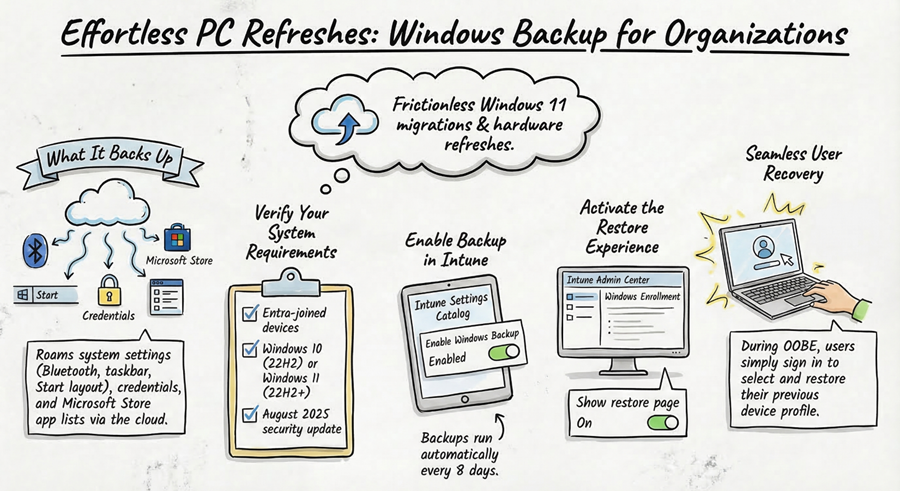
When configured, the system automatically backs up the following data every eight days:
- System settings: Language, region, personalization, taskbar, and Start menu layouts (including pinned apps).
- App data: Configurations and preferences for Microsoft Store applications.
- Credentials: Saved Wi-Fi networks and passwords.
Where is the Backup Data Located?
For organizations with strict compliance and security requirements, the “where” is just as important as the “what.”
- Tenant Data Store: Unlike consumer backups that go to a personal Microsoft Account, organizational backup data is stored within your organization’s tenant data store in the Microsoft cloud.
- Data Residency: The data generally resides within the same geographical region as your primary Microsoft 365 services (e.g., European data stays in the EU).
- Security & Encryption: The data is encrypted both in transit and at rest. It is tied strictly to the user’s Microsoft Entra ID (formerly Azure AD), ensuring that only the authorized user can trigger a restore during the setup of a new device.
- Admin Control: IT administrators can manage this data via Microsoft Graph API, allowing for the auditing, exporting, or deletion of backup profiles if necessary for compliance reasons.
Why This is a Game-Changer for Your IT Strategy
A solid backup strategy is the key to unlocking success for your team. As organizations accelerate their hardware refresh cycles—whether migrating from Windows 10 to Windows 11 or rolling out new AI-powered PCs—the lingering question has always been: “What do we do with the user’s local customizations?”
By integrating Windows Backup with Microsoft Intune, you unlock several major benefits:
- Faster provisioning times: Users are greeted by a familiar environment right from the first login.
- Fewer IT tickets: The helpdesk no longer spends hours manually restoring shortcuts or system preferences.
- Paired with OneDrive: When you combine this with OneDrive Known Folder Move (for files), the transition becomes nearly invisible to the end-user.
Windows Backup vs. Enterprise State Roaming (ESR)
Many IT pros are familiar with Enterprise State Roaming, but Windows Backup for Organizations is a much more robust successor. While ESR was primarily about syncing a limited set of settings (like theme and some passwords) across multiple devices simultaneously, Windows Backup is built for modern device lifecycle management.
| Feature | Enterprise State Roaming (ESR) | Windows Backup for Organizations |
| Primary Goal | Continuous sync between active devices. | Device replacement and disaster recovery. |
| App Support | Very limited (mostly OS settings). | Includes Store apps and pinned Start/Taskbar layouts. |
| Restoration | Background sync after login. | Integrated into the Windows Setup (OOBE) flow. |
| Control | Azure AD (Entra) level toggle. | Granular Intune policy control. |
How to Enable Windows Backup and Restore via Intune
The process is handled smoothly via the Microsoft Intune admin center:
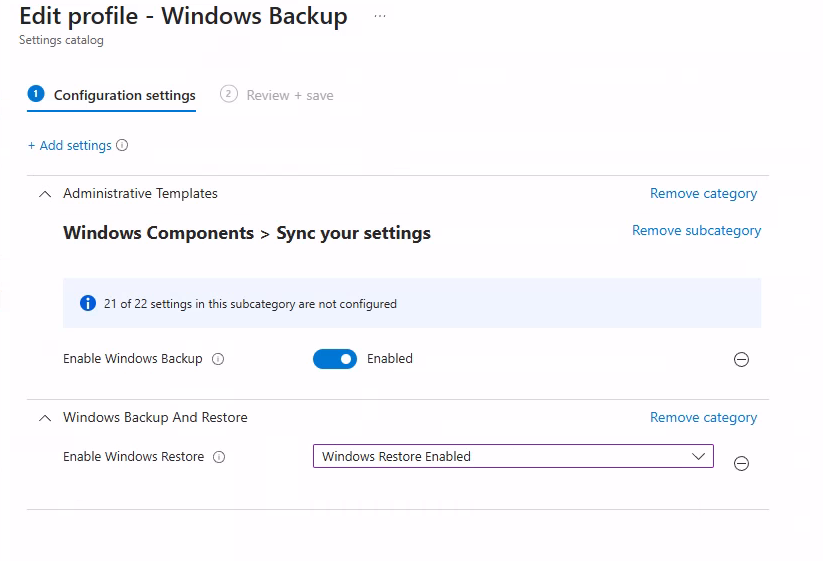
Create a Configuration Profile: Go to Devices > Windows > Configuration Profiles and create a new profile using the Settings Catalog. Search for “Windows Backup” and enable the settings. Assign this to your user groups.
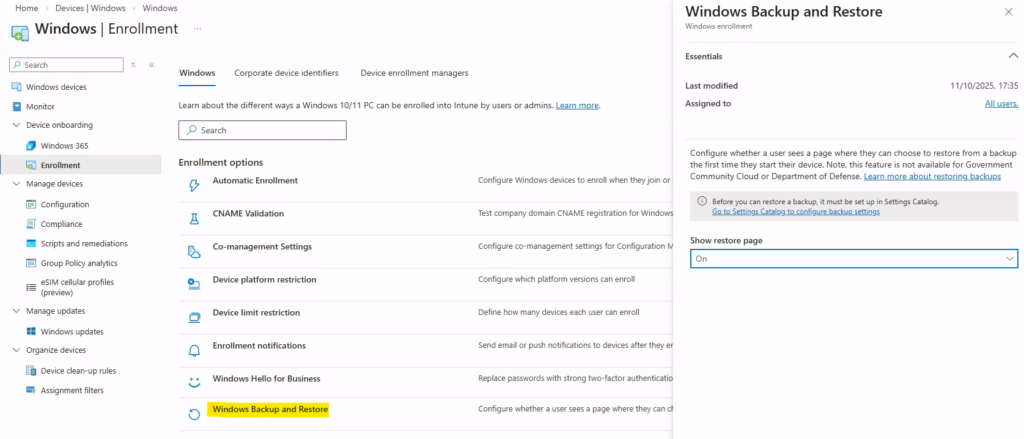
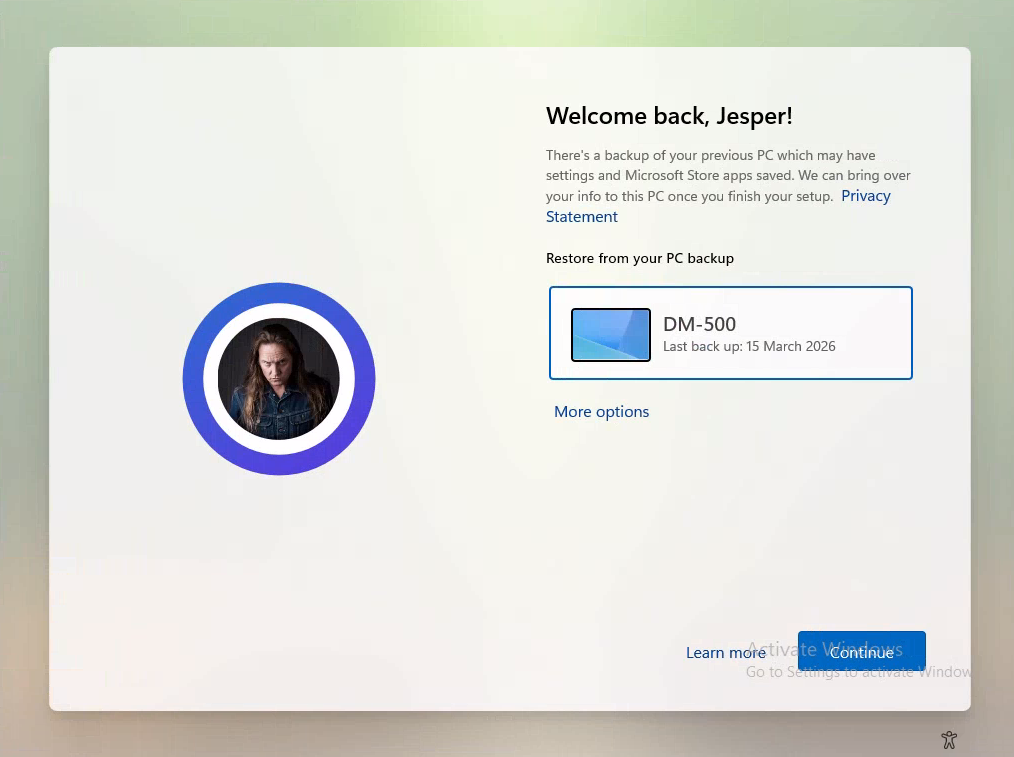
Enable Restore in OOBE: To allow users to retrieve their backup during the initial setup, navigate to Devices > Enrollment > Windows Backup and Restore. Toggle Show restore page to On.
How it works with Autopilot
In the supported scenario, the user starts a user-driven Autopilot enrollment on the new device and signs in with the same Entra ID account used on the previous device. If a valid backup exists and the device meets the requirements, Windows presents the restore page during setup. The user can then choose a previous backup and continue the enrollment flow.
After that, supported settings and Store apps are restored as part of the experience. The result is that the new device feels more familiar right out of the gate, instead of looking like it was dropped in from another planet.
Final Thoughts
Windows Backup for Organizations bridges the final gap in the modern desktop experience. By keeping user data within the secure boundaries of your corporate tenant, Microsoft has provided a tool that balances user convenience with enterprise-grade security.