A Dell fleet that’s half “old SCCM-era BIOS password” and half “new devices with no password” will break BIOS policy consistency unless you plan for it.
- Use Dell Command | Endpoint Configure for Microsoft Intune to apply BIOS settings through Intune.
- Build/export your config with Dell Command | Configure (CCTK).
- Run a two-track strategy: devices with an existing password vs devices without.
- Critical gotcha: If devices already have a BIOS password and you’re not using Intune per-device BIOS password management, you must include
ValSetupPwd=in your CCTK. If you don’t, policies fail with “Dell Agent reported error: 65” (also visible in policy monitoring).
The scenario: SCCM to Intune, mixed BIOS password state
This shows up a lot after a migration:
- Older Dell devices were managed in SCCM and have a legacy setup password (
setuppwd) configured. - Newer Dell devices were deployed later (often Autopilot-era) and either have no BIOS password or a different standard.
- You now manage BIOS settings using:
- Dell Command | Endpoint Configure for Microsoft Intune on endpoints
- Dell Command | Configure to create/export the configuration payload (CCTK)
That combination works great—as long as the password state is handled properly.
What Dell Command | Endpoint Configure + Intune actually changes
Conceptually, the flow is:
- You define the BIOS configuration in Dell Command | Configure.
- You export the settings into a CCTK config file/package.
- Intune delivers the policy, and the Dell agent applies it on the device.
If the BIOS is password-protected, the agent needs the correct password context to apply protected changes.
Use a two-track deployment model
Track A: Devices that already have a BIOS setup password
Goal: keep them manageable and move them toward your desired end-state.
- If you know the current password, you can apply settings reliably (and optionally rotate).
- If you don’t know the current password, you can’t apply protected settings consistently (you’ll need a servicing process).
Track B: Devices with no BIOS password
Goal: apply baseline + set your standard password from the start (or adopt per-device passwords if that’s your chosen model).
Lets fix the BIOS settings
1) Define your BIOS baseline once
In Dell Command | Configure, build a baseline that fits your standard: virtualization options, boot settings, security toggles, and device-specific options where relevant.
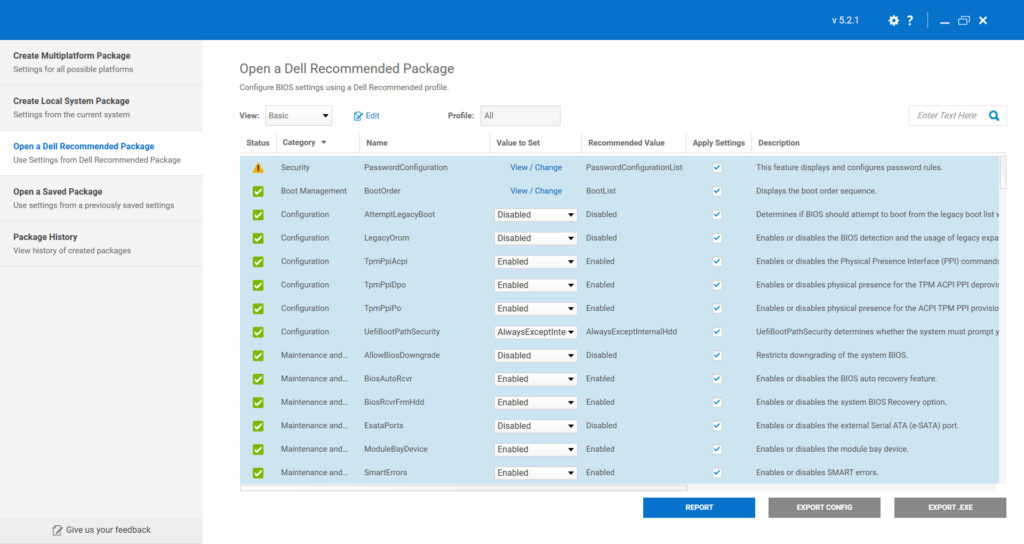
2) Export separate CCTK payloads (recommended)
Create at least two payload variants:
- Payload 1: CCTK file with just the password change
- Payload 2: Baseline for devices with the new password n existing BIOS password (include
ValSetupPwd=in the CCTK if you are not using per-device password management)
This makes scoping and troubleshooting much easier.
During the export, skip the Certificate-Based Authentication, leave it as Unspecified. Then “Continue Without Encryption”.
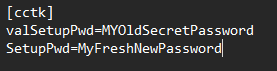
3) Add valsyspwd or valsetuppwd
Now we have the cctk file, open the file that needs the current password in an text editor, Notepad Vs code or similar. Do the same for the new devics and our baseline (Track B).
Add the lines
valSetupPwd= “current password”
SetupPwd= “new fresh password”

3) Deploy in rings
Roll it out like you would with firmware: Pilot (IT devices), then a small production ring, then broad deployment.
Troubleshooting: quick checks when policies fail
If you see “Dell Agent reported error: 65”
Check these first:
- Does the device already have a BIOS password?
- Are you not using per-device password management?
- Does the deployed CCTK include the correct
ValSetupPwd=? - Did you accidentally target the “no password” payload to a passworded device?
When ValSetupPwd= is missing (or wrong), you’ll see:

This is listed in the Intune console under policy monitoring for the profile.
Full list of error codes can be found here.
FAQ
Can I manage BIOS settings without knowing the current password?
Not reliably for password-protected changes. If the password is unknown, you typically need an authorized servicing/reset workflow before the device can be brought into the managed baseline.
Should I use per-device BIOS passwords?
Operationally, it’s a stronger long-term model (no shared secret), but it requires process maturity (break-glass, access controls, auditing). If you don’t adopt it, you must be disciplined about how you handle ValSetupPwd= in CCTK and who knows that shared password.
Where does Dell portal integration fit into Intune?
If you’re using Dell’s integration (often surfaced as the Dell portal integration / Dell add-on experience inside the Intune admin center), it’s best to treat it as your “single pane” for Dell-specific lifecycle capabilities—typically things like visibility, vendor insights, and (depending on what you’ve enabled/licensed) extra Dell management surfaces that complement native Intune.
For BIOS management specifically, the practical takeaway is: don’t mix and match three different control planes for the same settings. Pick one primary path for BIOS configuration (for example, Dell Command | Endpoint Configure policies in Intune) and keep the Dell portal integration focused on what it’s good at (vendor-specific reporting and operational workflows), otherwise you’ll end up with the endpoint equivalent of two drummers and no tempo.
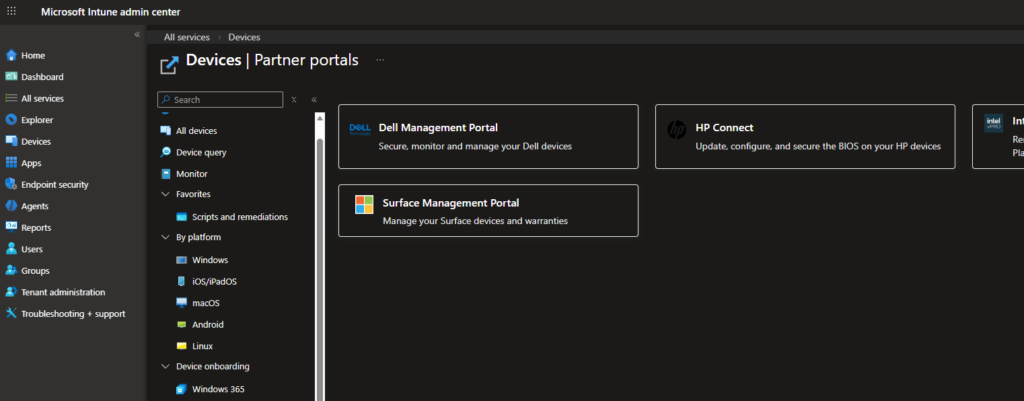
If you can go with Partner Portals I would recommend it, it is easy to handle bios passwords and settings that way instead of cctk files. I my last case we where not allowed to use that third-party provider because discussions on where the data was stored and who had access to it…