
Your Intune tenant doesn’t get messy because you’re doing a bad job. It gets messy because device management is messy. People leave, laptops get re-imaged, pilots come and go, and suddenly your device list is packed with entries that haven’t checked in for months.
That clutter isn’t just annoying — it actively gets in your way. Your device counts look inflated, compliance reporting becomes harder to trust, and simple jobs like finding the right device record turn into guesswork. Worse, stale records can stick around long enough that you stop believing what the console is telling you.
This is where Intune device cleanup rules earn their keep. They give you a safe, automated way to deal with inactive devices so your admin view stays useful. You’re not trying to “delete history” or wipe devices by accident — you’re trying to make sure the list you work from reflects reality.
In this post, we’ll look into what device cleanup rules actually do (and what they don’t), how to set platform-specific rules the sensible way, what happens if an old device comes back, and how to roll it out without creating noise for your users or your helpdesk.
What Intune device cleanup rules actually do (and don’t do)
Device cleanup rules are Intune’s way of automatically dealing with devices that have gone quiet.
Here’s the key bit most people miss: in the current Intune behaviour, cleanup rules hide devices from the Intune admin experience and reports when they haven’t checked in for a set number of days. They’re not a wipe. They’re not a retire. They’re not you sending a command to a device. It’s Intune saying, “This record is stale — stop showing it everywhere.”
What “checked in” means in practice
Intune looks at the device’s last check-in. If it’s beyond your threshold (for example, 90 days), the device becomes eligible for cleanup. The service evaluates this on a regular cadence (commonly described as every 24 hours).
What you’ll notice after it runs
Your device list gets calmer. Old duplicates stop polluting searches. Reports stop counting zombies. And you can actually trust what you’re looking at again. That’s the whole point: reducing noise so you can manage real devices, not historical artefacts.
What it does not do
- It does not wipe data from endpoints.
- It does not retire (unenrol) endpoints.
- It does not automatically delete the device object from Microsoft Entra ID. If you want a full “stale device purge”, you still need an Entra ID strategy alongside Intune cleanup. Usually by script or automation.
How will you know it happened?
Intune logs the action. In the audit logs you’ll see entries for devices that were hidden by a cleanup rule, including the rule name that triggered it. That means you can show governance-minded people exactly what changed and why.
What changed: platform-specific cleanup rules
For a long time, device cleanup rules were a bit blunt. You got one inactivity threshold and it applied across your whole estate. That sounds fine until you remember one annoying truth: different platforms “go quiet” for different reasons.
Windows laptops usually check in often. If one hasn’t checked in for a long time, it’s normally re-imaged, retired, lost, or sat in a cupboard. iOS and Android can disappear because someone changed phones, removed management, or the device is simply off for weeks. macOS and Linux in particular can be a mix of “daily driver” and “lab machine that only wakes up when someone remembers it exists”. One global rule forces you to pick a compromise that’s wrong for at least one platform.
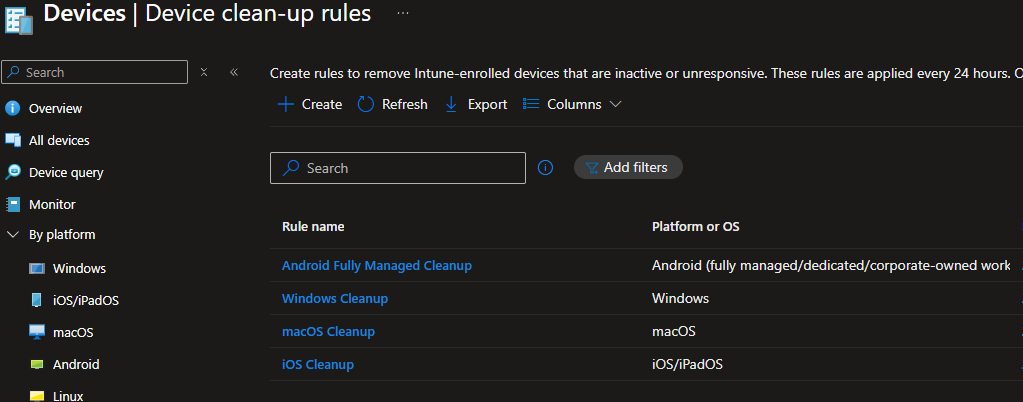
Service release 2507 fixed that by letting you create cleanup rules per platform. So instead of one catch-all rule, you can set separate thresholds for Windows, iOS/iPadOS, macOS, Android, and Linux. That’s a big deal because it lets you be strict where you can be strict, and patient where you need to be patient.
- Why you should care (beyond “it looks tidier”)
- You stop choosing between “too aggressive” and “completely useless”. Per-platform rules let you clean up Windows more quickly without accidentally hiding a rarely-used Mac or lab Linux box.
- Your reporting improves fast. The moment stale devices stop showing up in the admin centre and reports, your compliance and device metrics start reflecting what’s actually managed.
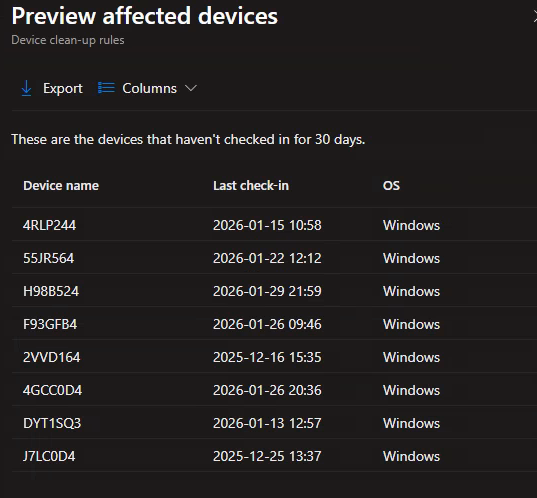
- You can roll it out safely. The Intune flow includes a preview of affected devices before you commit, which makes this feel like an admin-controlled change rather than a leap of faith.
Platform-specific rules make Intune cleaner, but they don’t replace asset management, and they don’t remove the underlying device objects from Entra ID. Think of this update as “make Intune usable again”, not “delete every trace of every device everywhere”.
How to set up device cleanup rules in Intune
Windows can usually handle a tighter inactivity window because devices tend to check in regularly. If a Windows record hasn’t checked in for a long time, it’s often a rebuild, a leaver device, or something sat in a drawer. Mobile is different. iOS and Android devices can go quiet for perfectly normal reasons (phone upgrades, batteries dead, devices switched off for weeks), so a stricter window can create more noise than value. macOS and Linux sit somewhere in the middle, and the right setting depends on whether they’re daily drivers or “only used when needed” machines.
The safest way to land on the right number is to treat your first pass as a draft and let the preview tell you what’s really going to happen. If the preview list is mostly obvious junk (old duplicates, old enrolments, devices no one recognises), you’re on the right track. If the preview list includes things you’d be annoyed to lose from view — kiosks, shared devices, lab kit, spares, seasonal devices, field-worker machines that rarely connect — your threshold is too aggressive for that platform. Loosen it until preview stops catching “important but quiet” devices.
A practical mental model is this: cleanup rules should remove the noise that makes your reporting and daily admin work unreliable, but they shouldn’t hide devices you still actively rely on, even if they’re offline for long stretches. Once your preview results look sensible, enable the rule and monitor the first few runs via audit logs so you can spot patterns you didn’t anticipate.
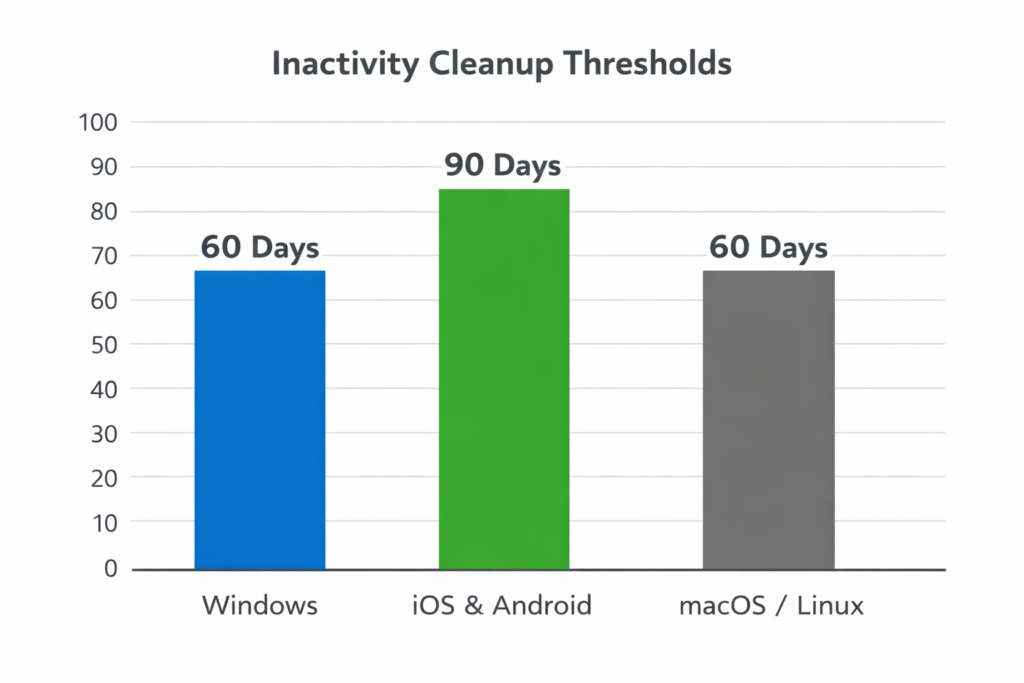
If you’re not sure what threshold to pick, start with something conservative for each platform, watch what gets flagged in preview, then tighten once you’ve seen real data. The Intune team has long framed this as a way to keep device count realistic in environments with lots of test/pilot churn — which is exactly the mess most tenants end up with.
Cleanup rules run on a schedule and hide devices that haven’t checked in within your set window. If a device checks in again (before its management relationship expires), it can become visible again — which is good: you’re not permanently losing a “real” device because it had a quiet period.
Once you enable rules, use Intune audit logs to confirm what the service is doing and when. This is how you defend the change internally and troubleshoot “why did this device disappear?” conversations.
Exceptions and oddities
The gotchas usually aren’t “the rule is broken”. It’s that your tenant has a few device types that don’t behave like normal user laptops and phones.
Shared devices and kiosks are the biggest trap. They can be perfectly healthy and still look inactive because they’re powered off overnight, only used seasonally, or only switched on when a location is open. If you apply an aggressive inactivity window, these will be some of the first things to get hidden. The fix isn’t to abandon cleanup rules — it’s to make sure your preview list doesn’t contain these devices before you enable the rule, and to use a longer window for the platform those kiosks run on.
Autopilot and pre-provisioning can also confuse people, mainly because they expect Intune to be their “source of truth” for device inventory forever. Cleanup rules are about keeping the admin experience and reporting accurate for actively managed devices, not acting as an asset register. If you have devices that are intentionally dormant (spares, future deployments), expect them to show up in preview and plan around that with longer thresholds.
Duplicates are a quieter problem, but they’re one of the biggest reasons you’ll want cleanup rules in the first place. Re-imaging, re-enrolment, migration projects, and pilot cycles can create multiple records for what is basically “the same” physical device. Cleanup rules won’t magically dedupe those, but they will hide the stale entries that never check in again, which makes your device list and reporting far less misleading.
The “what if the device comes back?” question is where most admins get nervous. In general, if a device is hidden due to inactivity and then checks in again before its Intune management relationship expires, it can reappear in the admin centre without you doing anything dramatic. You’re not wiping it; you’re not forcing a re-enrolment purely because it was hidden. That’s exactly why this feature is safe to automate.
The exception is when the device has been gone long enough that its ability to check in is effectively dead (for example, certificates or tokens involved in management have expired, or the device record has been removed elsewhere as part of another process). In those cases, the device might not smoothly return to a healthy managed state, and you may end up re-enrolling. The practical takeaway is simple: don’t set your inactivity window so long that you’re relying on “maybe it’ll come back one day”; use cleanup to keep Intune accurate, and handle true returns as new lifecycle events.