
Protecting your IT environment from a “catastrophic click” or a compromised admin account is the hallmark of a mature security posture. In Microsoft Intune, Multi-Admin Approval (MAA) is the “four-eyes” principle brought to endpoint management.
Why Use Multi-Admin Approval?
In many organizations, a single Intune Administrator has the power to wipe 50,000 devices with three clicks. MAA creates a deliberate gate between an action and its execution.
- Mitigate Insider Threats: Prevents a disgruntled or rogue admin from performing malicious bulk actions (like wiping the entire fleet).
- Prevent Accidental Disasters: We’ve all been tired. MAA ensures a second set of eyes confirms you’re deleting the test group, not the production group.
- Ransomware Defense: If an admin account is compromised by a bad actor, they cannot immediately use Intune as a weapon to destroy your infrastructure.
- Compliance & Governance: Provides a clear audit trail of who requested a change and who authorized it, satisfying strict regulatory requirements.
How to Setup Multi-Admin Approval
Setting up MAA involves creating an Access Policy. This policy defines what needs protection and who can approve it.
Step 1: Create an Approver Group
Before heading into Intune, create a Entra ID group containing the administrators who are authorized to approve requests.
Note: Approvers must have the “Approval for Multi Admin Approval” permission within their Intune role. The request is there for 30 days, then its automatically removed.
Step 2: Configure the Access Policy
- Sign in to the Microsoft Intune admin center.
- Navigate to Tenant administration > Multi Admin Approval > Access policies.
- Click Create.
- Basics: Give your policy a name (e.g., App Deployment Protection).
- Profile Type: Choose what this policy protects. In the image I set Device Wipe only.
- Approvers: Add the Entra group you created in Step 1.
- Review + Create: Submit the policy.
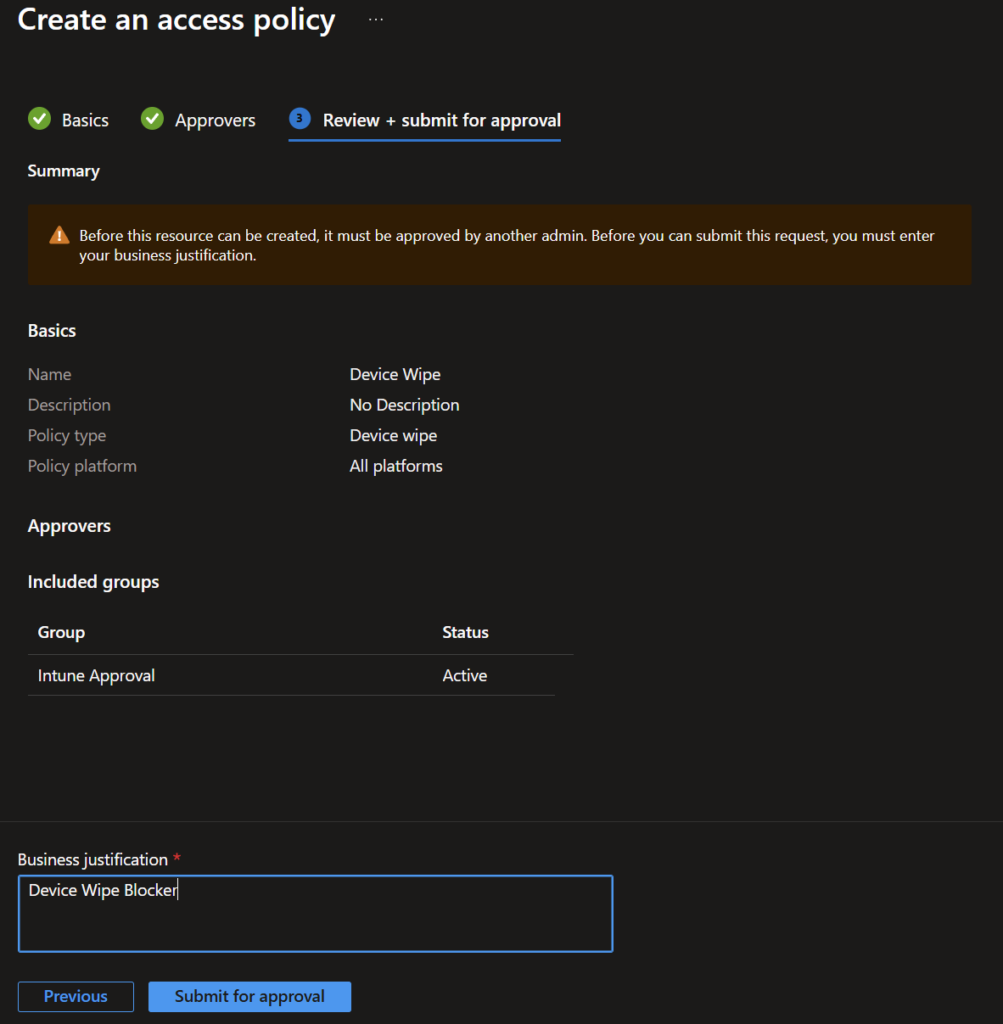
Note: For the policy to be activated in needs to be approved by one admin that is a member of the group.
Once active, when an admin tries to perform a protected action:
- They must enter a Business Justification.
- The action enters a Needs Approval state.
- An authorized approver must go to Tenant administration > Multi Admin Approval > Received requests to Approve or Reject it.
- Crucial Step: After approval, the original requester must go to My requests and click Complete to actually trigger the task.
The “Not-So-Good”
While MAA is a powerful security tool, it has some “quirks” that can frustrate a fast-moving IT team:
- No Native Notifications: Surprisingly, Intune does not send an email or Teams alert when a request is pending. You currently have to manually “shoulder tap” your colleague to let them know an approval is waiting.
- Automation breaks. Many automations might break because if this.
- Limited Scope: As of now, MAA doesn’t cover every corner of Intune. For example, some configuration profiles and remediations may still sit outside of MAA protection, though Microsoft is constantly expanding this.
- Operational Friction: It turns a 5-minute task into a “whenever my colleague sees my Teams message” task. In a true emergency (like a rapid app patch), this friction can feel like a bottleneck. Not to mention when there is only one admin….
Multi-Admin Approval is no longer just for “highly regulated” industries. In an era where identity is the primary attack vector, having a secondary gate for high-impact actions like Device Wipes or Script Deployments is simply common sense. Start small—protect your Device Actions first, then expand to Apps and Scripts as your team gets used to the workflow.