Windows 365 Cloud Apps lets you publish individual Windows apps from the cloud—without giving every user a full Cloud PC. Here’s where it shines, how it compares to AVD RemoteApp, and what it takes to get started.
Windows 365 Cloud Apps is Microsoft’s “apps-first” take on cloud delivery: publish individual Windows apps that run on Windows 365 Frontline (shared) Cloud PCs, managed from Intune, and launched through Windows App. It’s ideal when you want less Azure/VDI plumbing than AVD, and when concurrency + simplicity matter more than full platform flexibility—less orchestra pit, more power trio.
What Cloud Apps is (and what it isn’t)
Windows 365 Cloud Apps lets you deliver single applications instead of a full remote desktop. Users open Windows App, click an app tile, and the app runs remotely while presenting as an “app window” experience.
Under the hood, those published apps execute on Windows 365 Frontline Cloud PCs in shared mode, which is a big deal: you’re not necessarily paying for “a Cloud PC per person,” you’re aligning more to concurrent usage (depending on how you license/assign Frontline capacity). In other words: fewer unnecessary solos, more tight rhythm section.
Why Cloud Apps exists
A lot of organizations don’t actually need “another full desktop” to solve their problem. They need:
- One legacy Windows app that can’t be modernized anytime soon.
- A secure way to provide access for contractors without handing over a whole environment
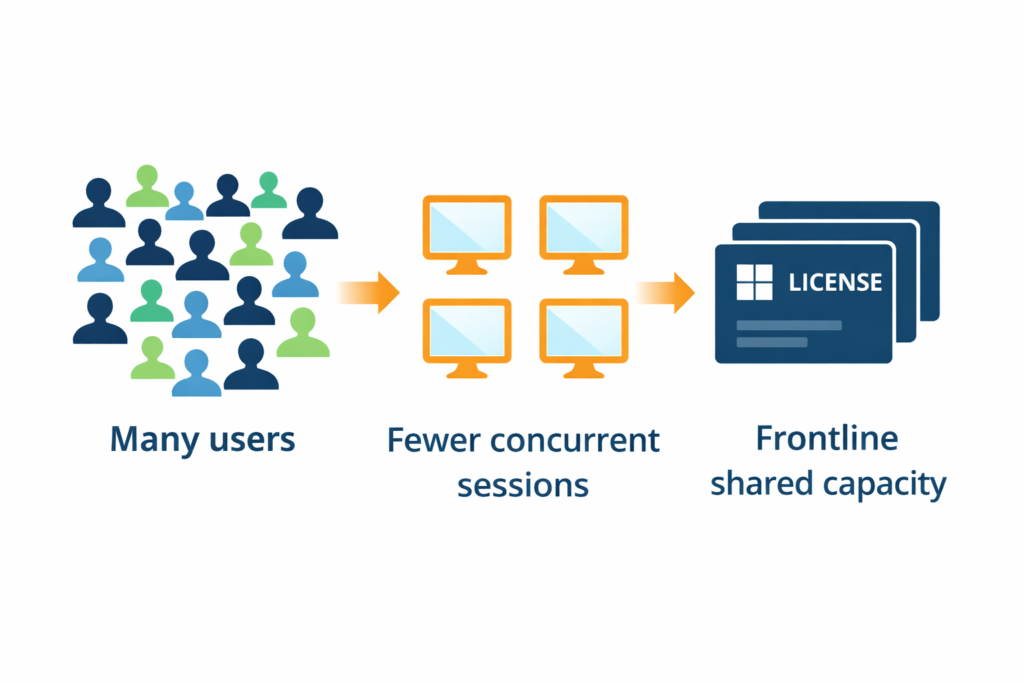
- A shift-worker model where 200 people might use the app, but only 25 are active at the same time
Cloud Apps aims to remove the “build-a-VDI-platform-first” tax and give you a managed on-ramp through Intune + Windows 365.
Think of it like switching from a 14-step progressive metal concept album to a tight, punchy four-minute track: fewer moving parts, faster impact.
The benefits that actually move the needle
A simpler path than AVD (for many teams)
AVD RemoteApp is powerful, but it often pulls you into architecture decisions around host pools, scaling, networking, FSLogix, monitoring, and cost controls. Cloud Apps is intentionally designed to be more “managed service first,” with the management motion living in the Windows 365 / Intune experience—less time tuning amps, more time playing the set.
Better economics for shift and occasional users
Because Cloud Apps runs on Frontline shared mode, it’s naturally aligned to concurrency. This is where it can be a real win for industries with large rosters and smaller active overlap: retail, healthcare, manufacturing, seasonal operations, training labs, etc.
Cleaner user experience: “just the app”
People adopt “an app I click” faster than “a remote desktop I enter.” Cloud Apps leans into that: publish only what’s needed, reduce user confusion, and keep the experience lightweight—like a good riff: memorable, repeatable, and no filler.
Familiar management: it’s still Windows 365
You’re not building a parallel universe. The same general Windows 365 concepts (provisioning policy, images, experience choices) apply—Cloud Apps is an experience model on top of that. Same band, different setlist.
Stronger shared-session usability with User Experience Sync
Shared sessions traditionally come with “I lost my settings” complaints. Microsoft’s User Experience Sync is designed for Windows 365 Frontline shared mode scenarios (which includes Cloud Apps) to help persist parts of the user experience across sessions—making Cloud Apps more viable for daily use. Less “where did my settings go?”, more “hit play and go.”
Cloud Apps vs AVD RemoteApp: where each wins
Cloud Apps is a strong choice when you want speed, simplicity, and managed operations—especially if your goal is “publish 1–5 apps and move on.” Think: small venue, tight soundcheck, straight into the bangers.
AVD RemoteApp is a better fit when you need maximum flexibility, deep Azure control, complex scaling patterns, custom networking, or advanced platform-level design requirements—more like building a festival stage with pyros and a touring crew.
In real life, it often becomes a portfolio decision:
- Cloud Apps for “fast app delivery with low operational friction”
- AVD for “platform-level control and broad customization”
Getting started: the basic setup flow
No deep steps here—just the path you’ll follow:
Getting started: three ways to make sure the app is actually there
When you stream apps from Windows 365, everything comes down to one simple truth: the app must exist on the underlying Cloud PC. You can get there in three common ways—pick the one that matches your reality (and your patience level).
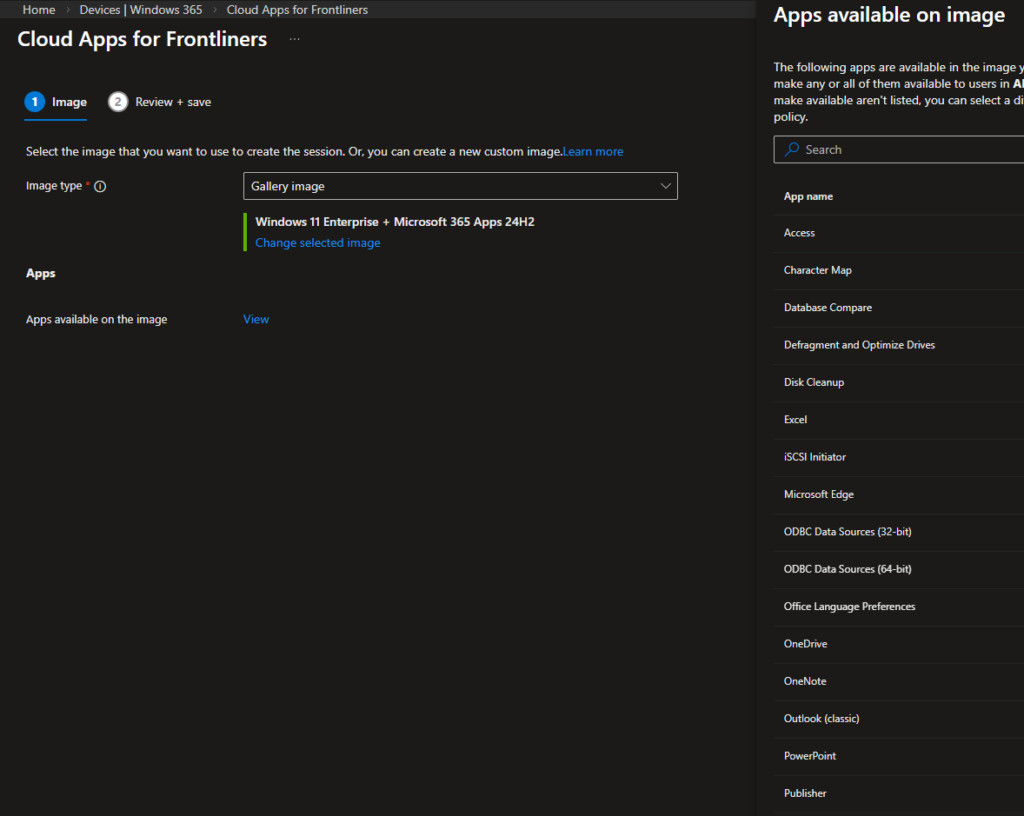
Option A: Gallery image (app already included)
Use a Windows 365 gallery image when the app you want to publish is already present (or you’re fine with publishing what’s available out-of-the-box).
This is the cleanest path: minimal moving parts, fast onboarding, and fewer “why is this missing?” moments.
Option B: Custom image (bake the app into the base)
If the app isn’t in the gallery image and you need it guaranteed at first boot—especially for heavier or more legacy apps—go custom image. This is the “studio album” approach: you do the work upfront so every Cloud PC starts with the exact tracks you need.
This includes Azure stuff and image management, would not recommend since it’s a bit work to create and maintain!
Option C: Gallery image + Win32 app + Device Preparation Policy
This is the modern sweet spot: keep the gallery image, but use Intune Win32 apps installed through an Autopilot Device Preparation Policy. You avoid image maintenance, but still ensure the app lands on the Cloud PC before users start clicking.
Create the groups
We need two groups one for the FLW users to be assigned to policies and license. One group to collect the CloudPC that is provisioned. The devices will be added during the device preparation. Make sure you set “Intune Provisioning Client” as owner of the device group, otherwise you wont be able to assign it in the device preparation policy.
Package the app as an Intune Win32 app (or verify it already exists)
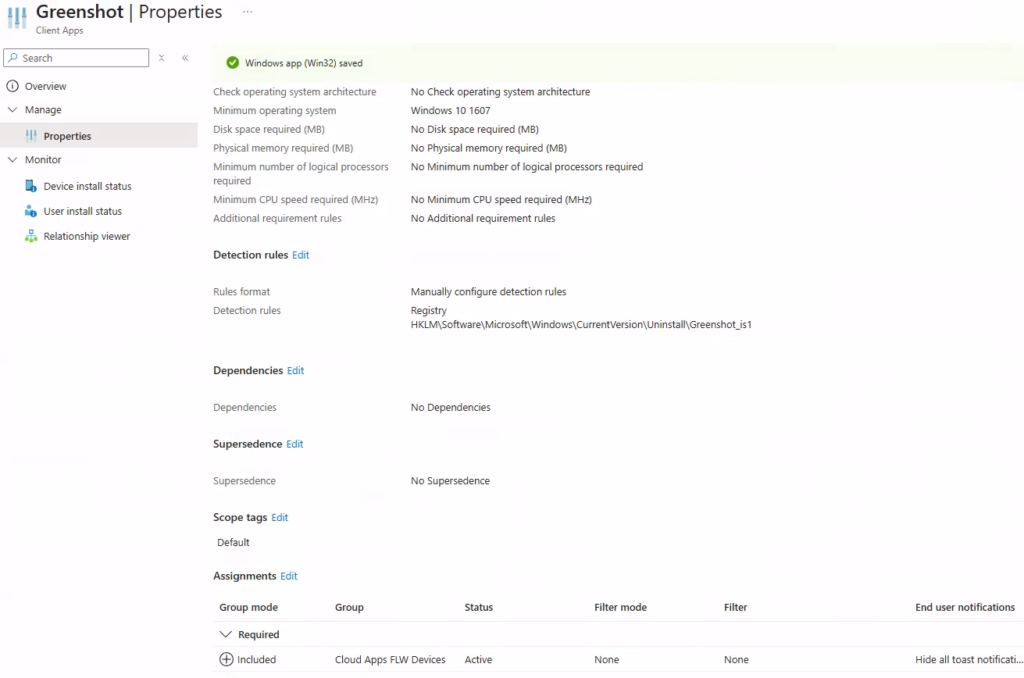
Create the Device Preparation Policy and select the apps to install
This is where you choose which Win32 apps get installed during preparation. When creating the policy choose “Automatic” as the type.
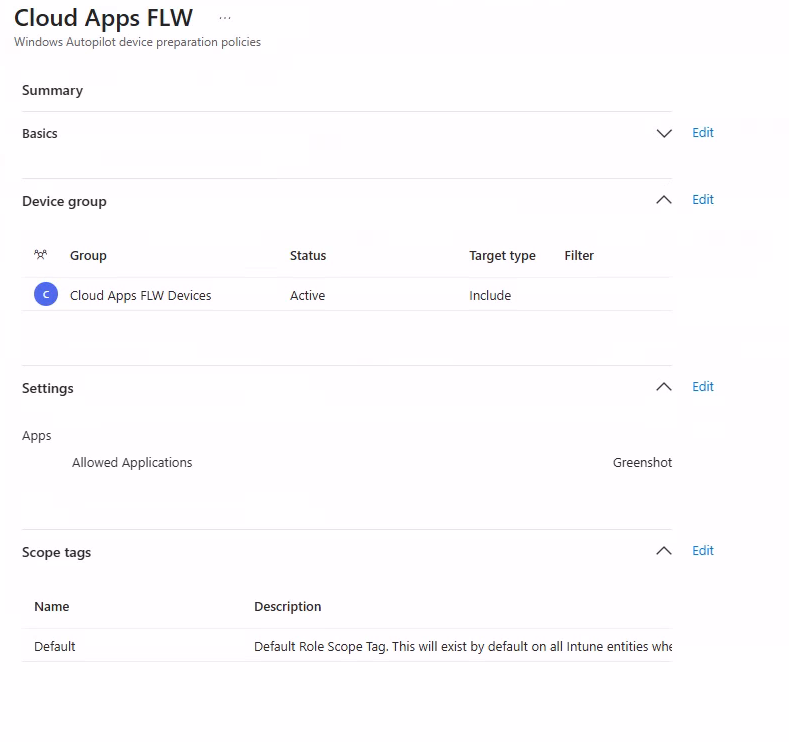
Assign the app as Required to a device group
This matters because preparation flows need the app to be mandatory for it to install to Cloud PCs.
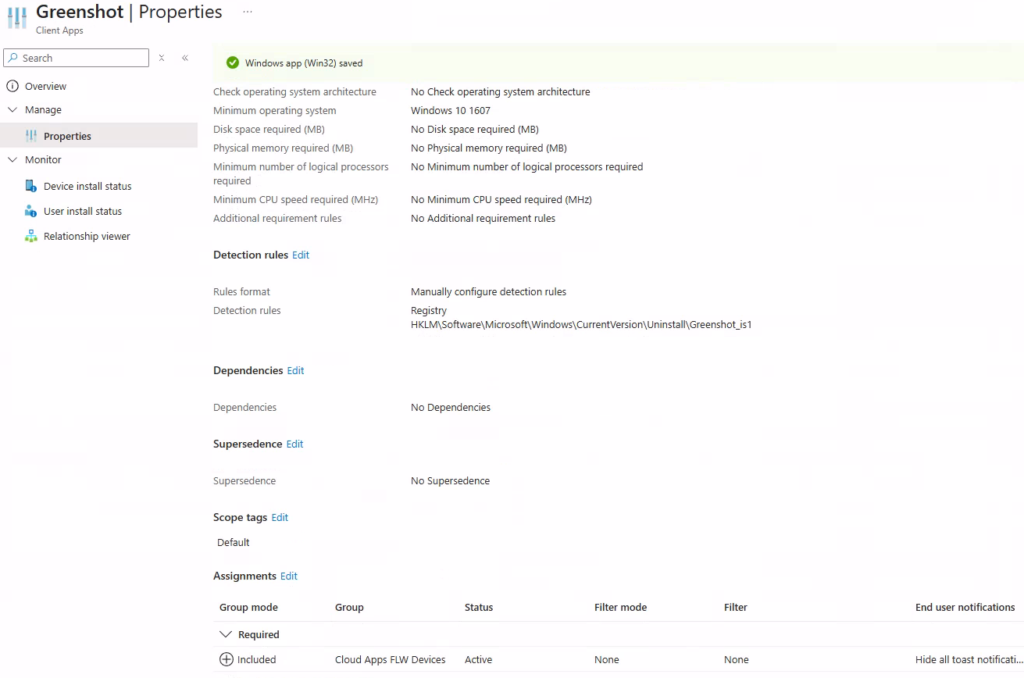
Create the Windows 365 Provisioning Policy and attach the Preparation Policy
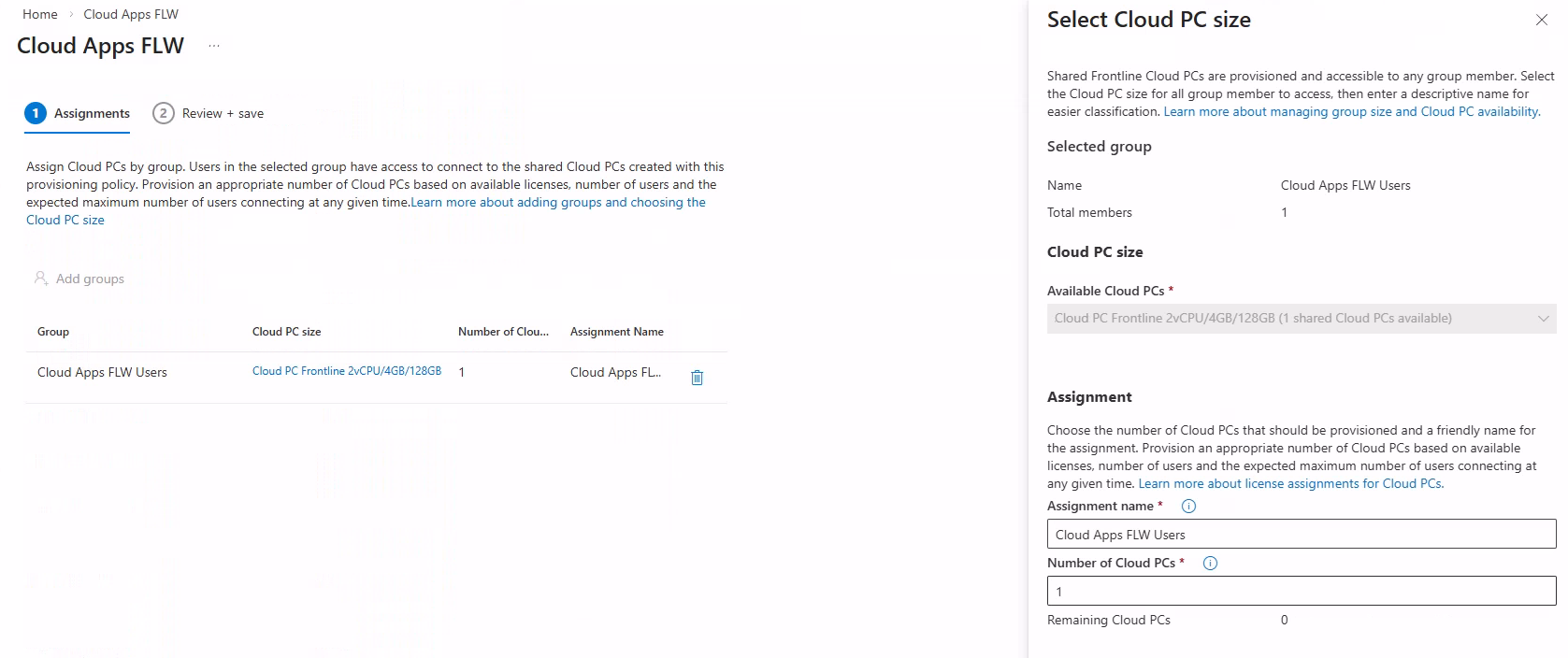
Choose the Cloud Apps / apps-only experience, then point to your gallery image, and link the Device Preparation Policy so the Cloud PC is prepped before users launch anything.
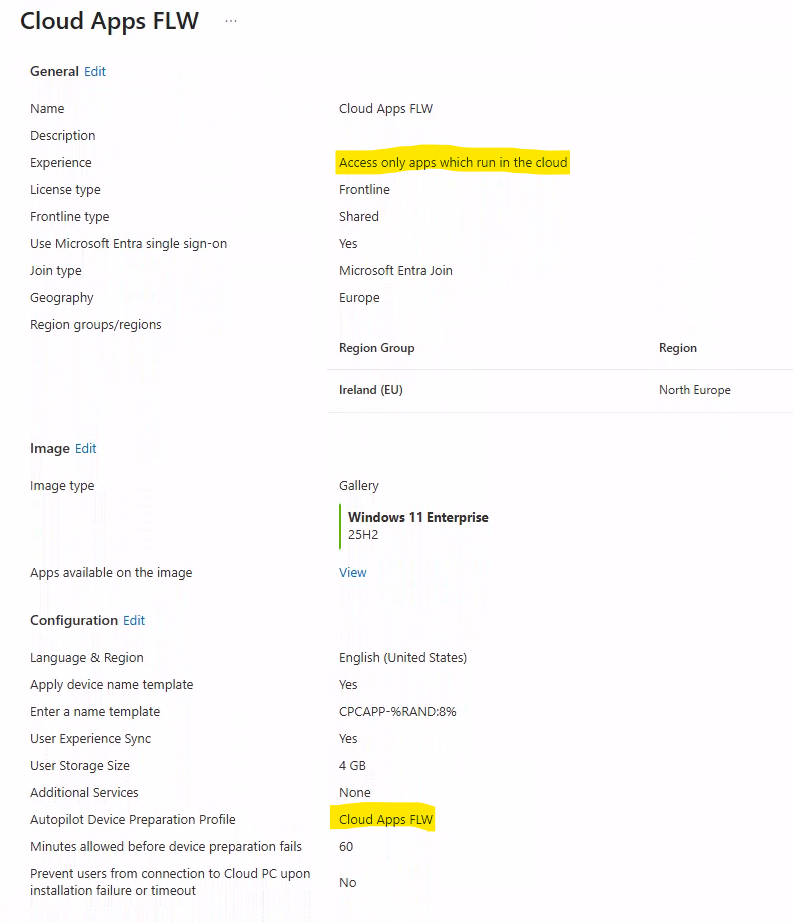
In assignment we assign our users group, That’s our Firstline workers. Set the proper licensing as well.
Publish and launch
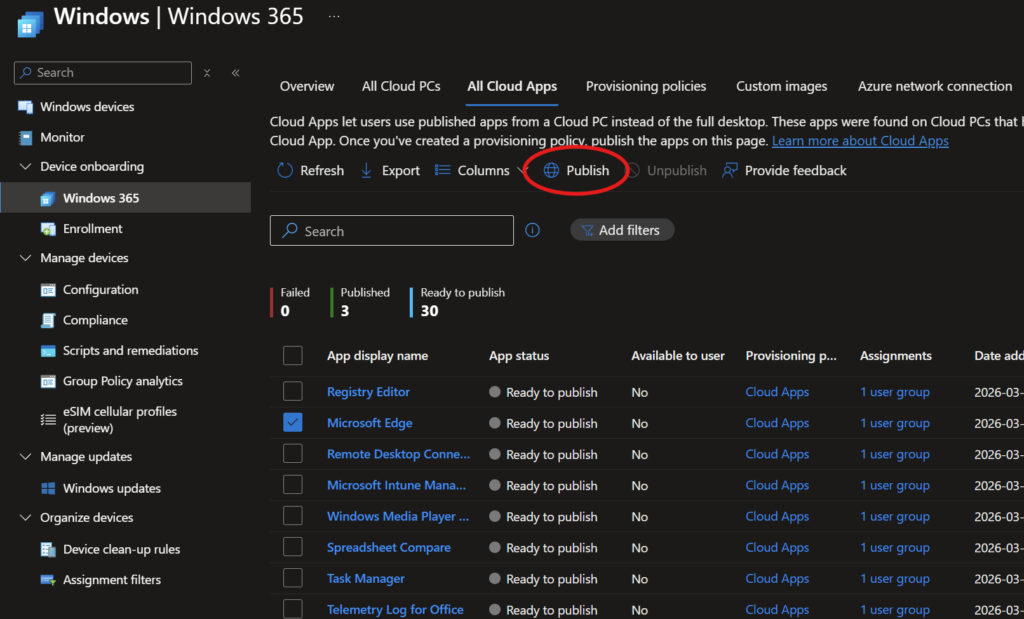
Once the Cloud PC has the app, Cloud Apps can discover it , and you publish it. It will take some time for it to provision. But once it’s done you can publish the cloud apps.
Users launch apps through Windows App
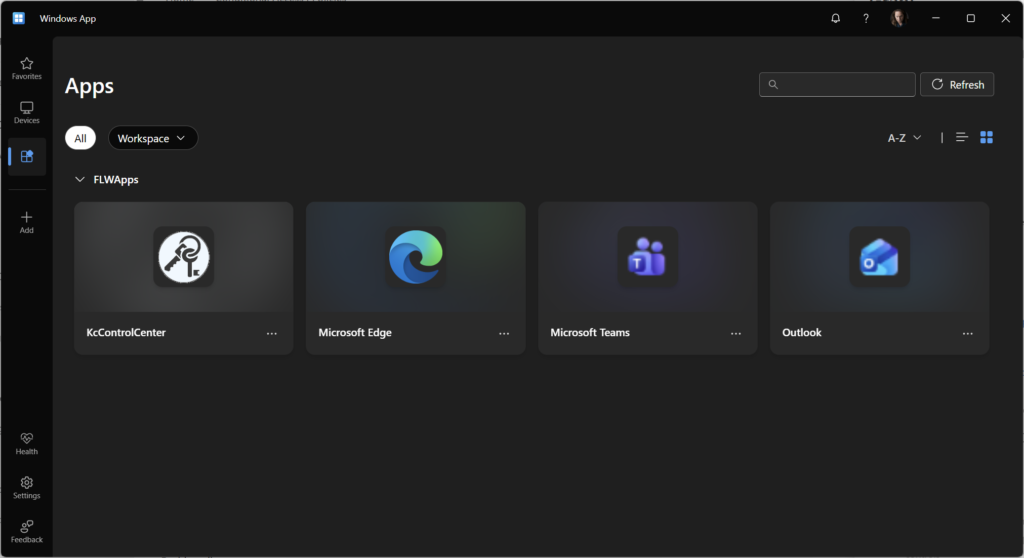
Users open Windows App and see published Cloud Apps in the Apps view. From there, it’s click-and-go—no encore required.
Practical considerations
Published app boundaries aren’t always “hard walls”
A published app may be able to trigger other installed components (think: opening a link or calling a helper app) even if you didn’t explicitly publish those. If strict control matters, pair Cloud Apps with App Control approaches—because “surprise guest appearances” are fun at concerts, not in production environments.
Keep your expectations realistic with experience roaming
User Experience Sync can make shared sessions feel much more “personal,” but it’s not a magic wand that roams everything. Treat it as a targeted improvement for the shared-mode reality.
Windows App is now the front door
If you’re standardizing end-user access, treat Windows App rollout and user comms as part of the project—not an afterthought. Otherwise you’ll get the IT equivalent of feedback squeal: loud, annoying, and entirely preventable.